Windows OS Setup
- Windows OS Setup
Introduction
If your development system is running on Windows, follow the steps in this section. The Docker images themselves have a lot of setup done already, but it is important to setup the OS environment to properly host the Docker containers upon which all the other conversion and runtime processing is built.
At the end of this setup, you should be able to open a bash shell and run Docker inside it.
Assumptions
The assumptions regarding the environment are:
- Windows 11 will be used by the developers for their main environment.
- Administrator access is available.
- You have a basic familiarity with executing commands using a console or
bashshell.
Configure WSL 2 Ubuntu 24.04
Ubuntu 24.04 is required for development/runtime of FWD in WSL-2. Make sure that WSL2 Ubuntu 24.04 should be enabled. This is also a pre-requisite for the Docker environment. There are many resources available to get WSL 2 running on Windows. Start with https://learn.microsoft.com/en-us/windows/wsl/install
WSL 2 Installation Basics
Open PowerShell as Administrator and run:
wsl --installThis will:
- Enable required Windows features
- Install WSL2
- Install a default Linux distribution (Ubuntu)
If WSL is already installed, ensure version 2 is used:
wsl --set-default-version 2
For information on key differences with WSL 2 please visit https://aka.ms/wsl2
The operation completed successfully.
Reboot if prompted.
Install/Setup Docker
Install Docker Desktop for Windows, see https://docs.docker.com/desktop/setup/install/windows-install/, which provides very thorough step-by-step instructions for installing Docker Desktop on Windows. Make sure to choose the WSL2 installation path.
File Access between Windows and WSL
It is helpful if the WSL 2 mounted file system is accessible from File Explorer so that files from local environments can be made available within the WSL environment. If you cannot access \\wsl@localhost from Explorer, you may have the situation Accessing wsl.localhost through Windows 11 file explorer? resolves. A PowerShell script, fix_wsl_localhost.ps1, can be downloaded from here.
How to Get to a bash Shell in WSL
There are multiple ways to access bash:
Option A: From Start Menu
Open the Start Menu
Launch Ubuntu (or your installed distribution)
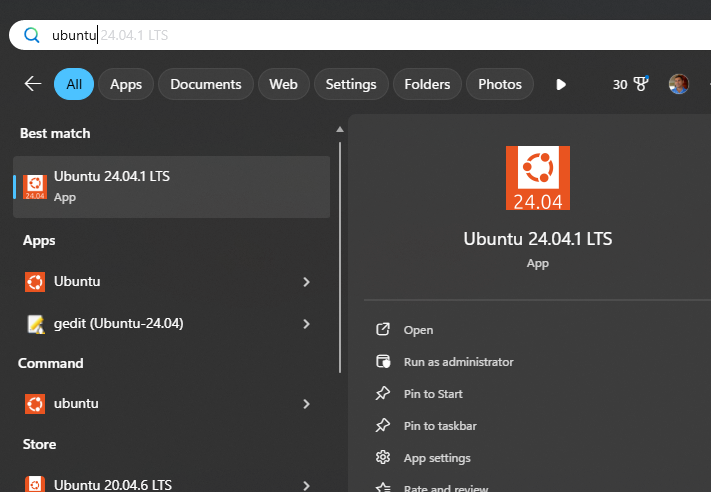
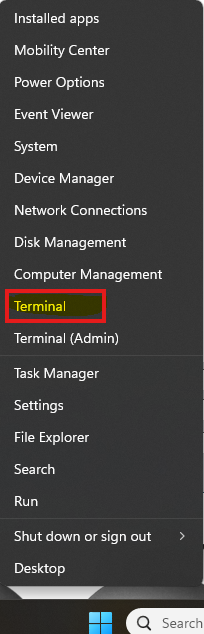
Option B: From Start Menu (Right Mouse on Terminal)
1. Open Windows Terminal
2. Choose Ubuntu from mini-dropdown
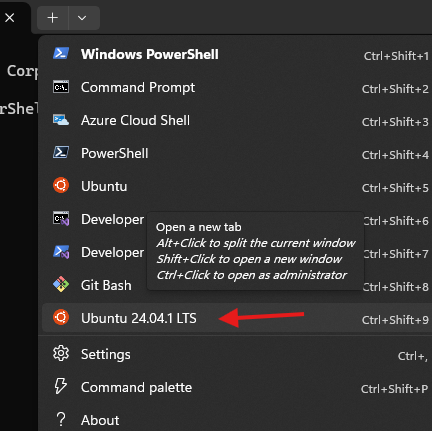
You should now see a Linux bash prompt, for example:
user@hostname:~$
If you installed a specific WSL 2, make sure to select the correct one, because they will be different instances.
Install Unzip/Zip
Inside the WSL bash shell:
sudo apt update
sudo apt install -y zip unzip
Verify:
zip -v
unzip -v
Other Ubuntu utilities you find can be installed in a similar manner. There are helpful Linux and Ubuntu tutorials like this one all over the Internet.
Accessing Network Drives
This section is provided as a sample, but your setup may be very specific, and will have its own security requirements.
You can make network shares available to the WSL2 environment. This can be helpful for accessing Windows resources that contain source code, so they do not need to be transferred around, and can be accessed directly. One way to do this is via drvfs mounting. For example, to mount \\winserver\srcfiles:
sudo mkdir /mnt/wsl/winshare
sudo mount -t drvfs '\\winserver\srcfiles' /mnt/wsl/winshare
That resource should now be available in WSL2.
Common Mounts
| Windows Drive | WSL Path |
| C:\ | /mnt/c |
| D:\ | /mnt/d |
Example:
cd /mnt/c/Users/YourWindowsUser
ls
This allows:
- Editing Windows files from bash
- Running Docker builds using Windows directories
- Sharing files between Windows tools and Linux tools
Recommended practice
Keep projects under:/home/user/projects- Use
/mnt/cmainly for:- Downloads
- Shared files
- Interacting with Windows tools
Using Docker from WSL2
Docker Desktop automatically exposes Docker to WSL2.
Inside WSL bash:
docker versionShow proper output
docker psShow proper output
If these work, Docker is correctly integrated.
Common Troubleshooting
Docker command not found
- Ensure Docker Desktop is running
- In Docker Desktop:
- Settings → Resources → WSL Integration
- Enable integration for your Linux distribution
WSL not using version 2
wsl -l -v
If needed:
wsl --set-version Ubuntu 2
© 2004-2026 Golden Code Development Corporation. ALL RIGHTS RESERVED.