OpenEdge IDE Features
Project & File Setup
Project Management
Projects are dedicated folders that contain the associated resources, files and sub-folders and are organized within workspaces. A workspace is a folder which groups projects and metadata files. When the application starts, the user is prompted to specify the workspace to be used, which can also be changed later with File → Switch Workspace.
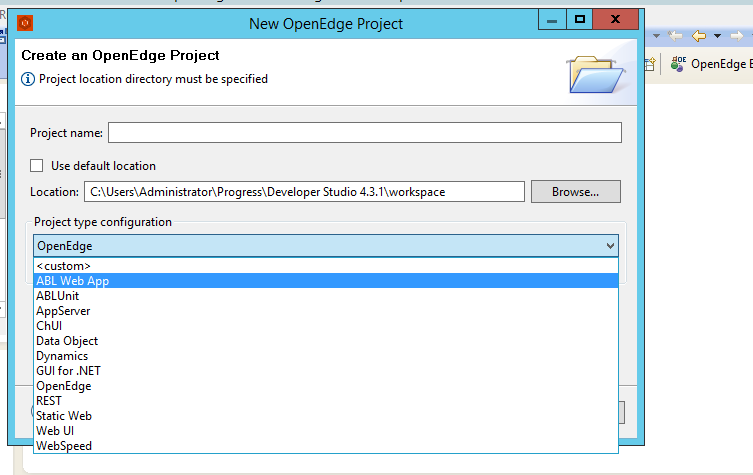
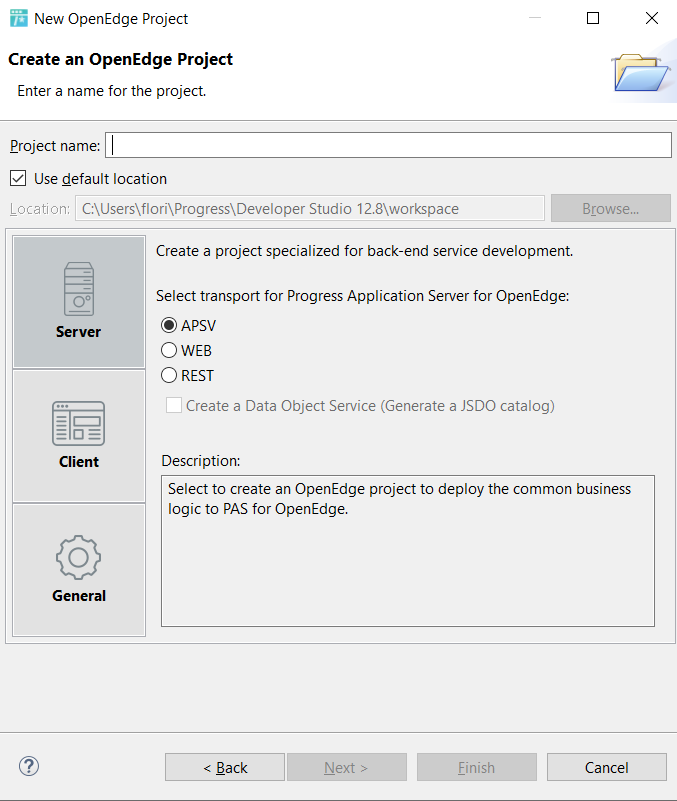
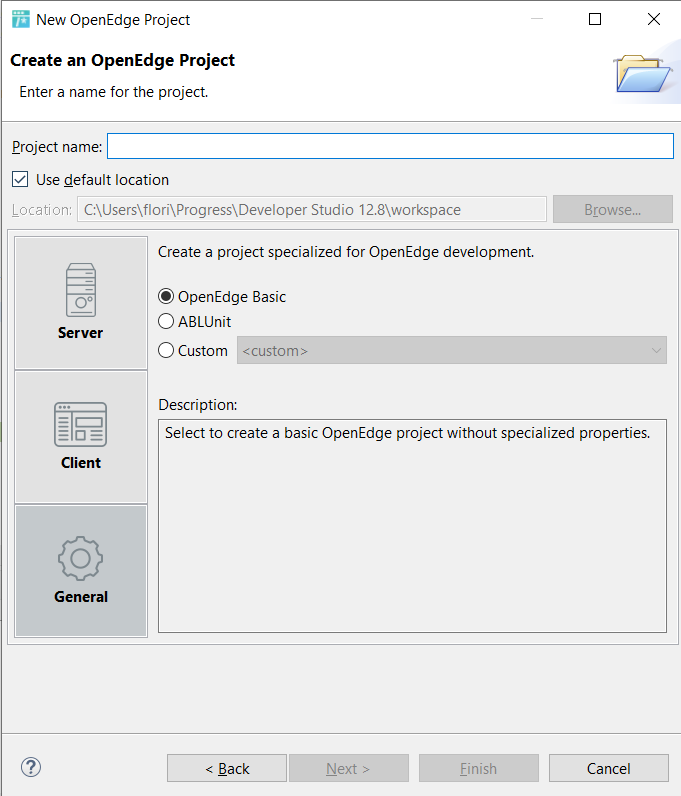
When creating a new project, we have several project classes to choose from:
| Web App | Unit | AppServer | OpenEdge | REST | WebSpeed | |
|---|---|---|---|---|---|---|
| Link | link | link | link | link | link | link |
| Filesystem | 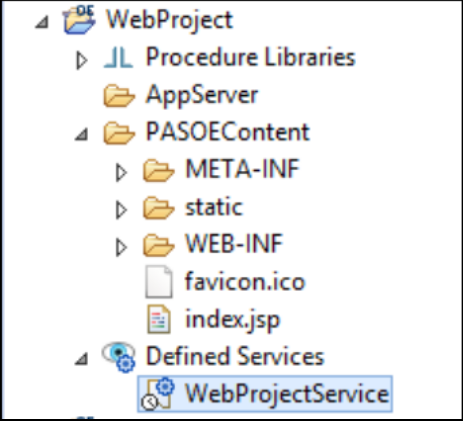 + a build.config file |
An empty directory tests and dependencies like ablunit.p, standard GUI and TTY libaries added to the PROPATH. |
The AppServer source folder + a build.config file and dependencies like standard GUI and TTY libaries added to the PROPATH. |
An empty project directory and standard GUI and TTY libaries added to the PROPATH. |
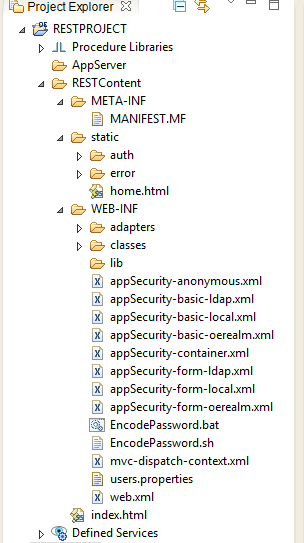 + a build.config file |
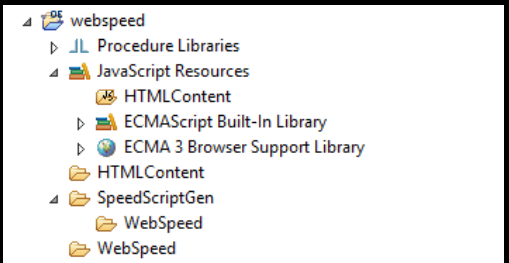 + a build.config file |
| Configuration | A database connection and a server to be used can be configured. The user can choose the type of the first default ABL Service.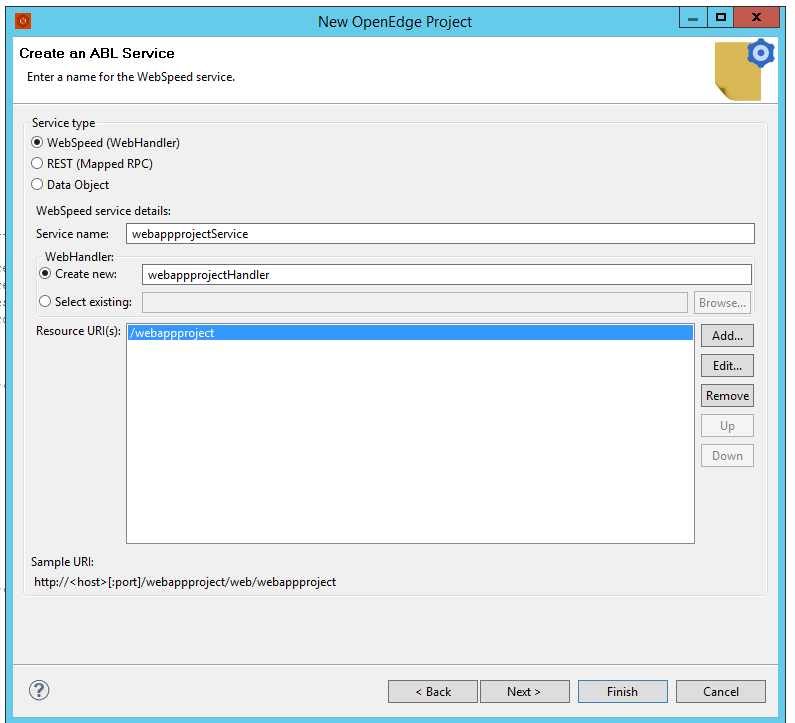 |
No configuration is needed. The test classes can be run directly. | In Properties → Progress OE → Modules the folders published to the server can be chosen. In the servers view, one can associate AppServer module(s) with a server. |
No configuration is needed. The procedures can be run directly. | REST Applcations use an AppServer in order to run the required ABL business logic. | The procedures have to include the {{src/web2/wrap-cgi.i}. The App needs a WebSpeed server to publish the procedures/files. Creating a server can only be done using a broker.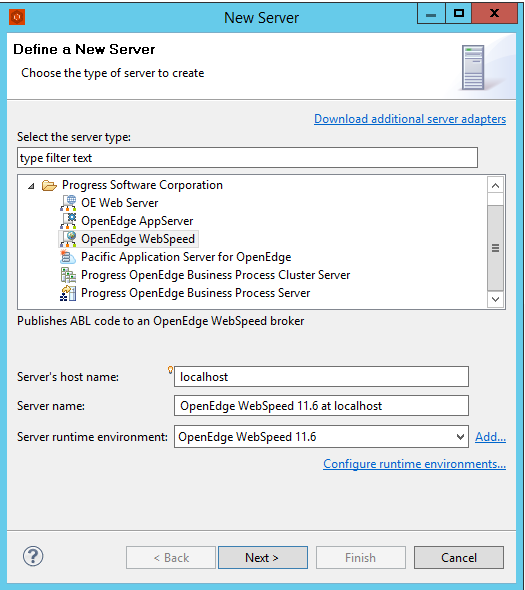 A database connection can also be aded. |
| Artifacts | HTML pages, graphics, JavaScript, XML, etc. | .cls test classes which can use external procedures and include files too |
Procedures and other include files | Procedures and other include files | HTML pages, graphics, JavaScript, XML, etc. | Files like CSS, XML, Wireless Markup Language (WML), HTML), Dynamic Hypertext Markup Language (DHTML). A WebSpeed agent runs WebSpeed objects ( .r fiels). There are several categories of them:1. Static HTML files - HTML files which will be converted to a web object. 2. CGI Wrapper - these objects generate HTML output to the browser when executed. 3. SpeedScript web objects - a static HTML files in which SpeedScript code is embedded using escapes <script>.They are executed entirely on server, thus reference of DB fields is allowed in the HTML file. 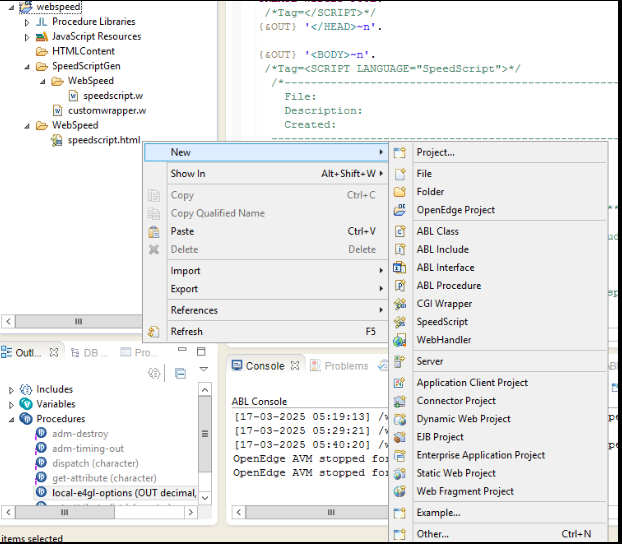 |
| Dev Tools | New Business Entities can be created using the dialog: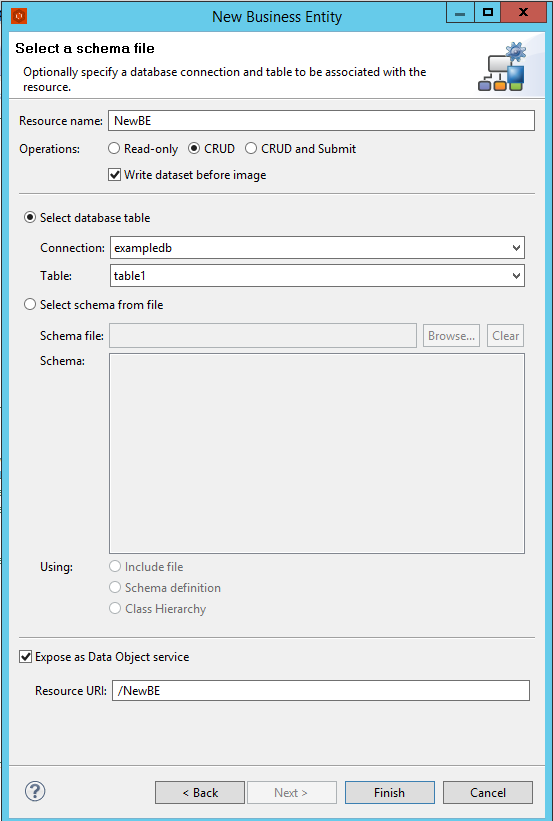 This creates an ABL class (.cls) which automatically includes the Data Object interface annotationsand a .i file with a temp-table associated to the DB (if any).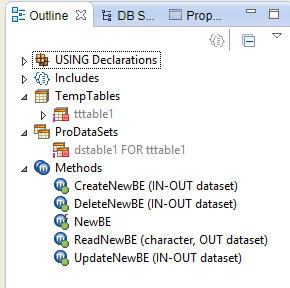 |
The standard OE IDE development environment. Annotations for marking the test cases, assertions for testing expected results, Test suites for easily organizing and running test cases |
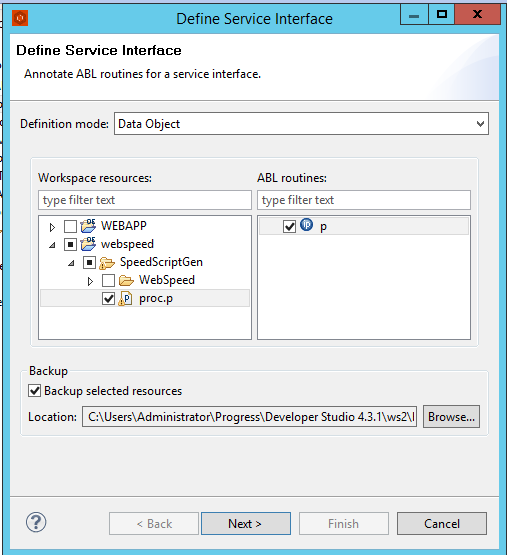
The standard OE IDE development environment. | The standard OE IDE development environment. AppBuilder can be used to edit/visualize files of the specific type. | - Creating an AppServer REST service interface using the Define Service Interface Wizard - adding ABL Data Object annotations to classes and procedures (screenshots below). - Creating REST Web Service - using the REST Res. URI editor, the user can specifiy the name, root, URI, map operations to HTTP methods. 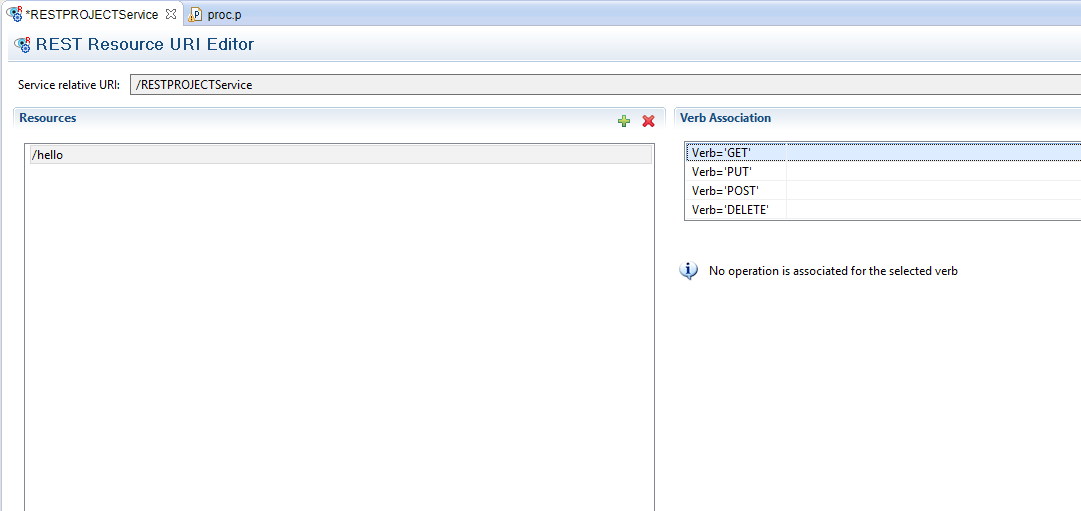 - Adding static resources to the project - static files can be deployed on the Web Server. |
ABL, SpeedScript API, AppBuilder |
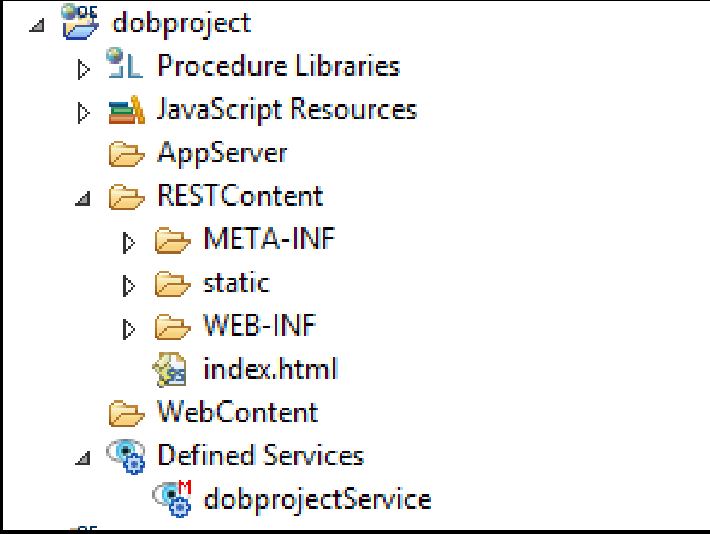
| Deployment Tool | The Data Object Service is deployed by selecting Defined Services → <selected service name>. From there, we can select which service(s) to publish using the ABL server in use: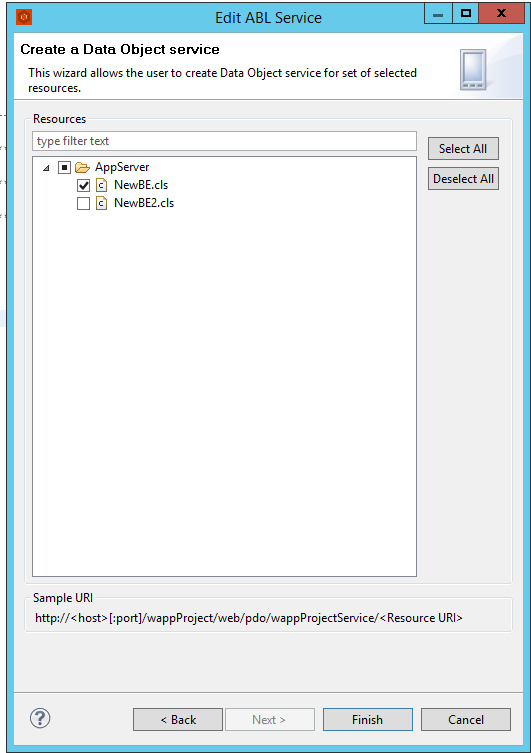 |
The ABL Unit view shows an overview of the failed/passed tests: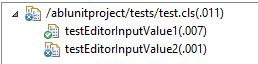 It can be accessed with Window > Show View > Other... > ABL Unit. |
The AppServer can be stopped/started/launched in debug mode in the Servers View in the OE Server Perspective. The Servers view can also be used to increase/reduce the agents number. |
NA | REST services can be published to a server instance after it has been created and associated with the service. After the artifacts are modified, the user must manually republish the server if republish automatically hasn't been set. 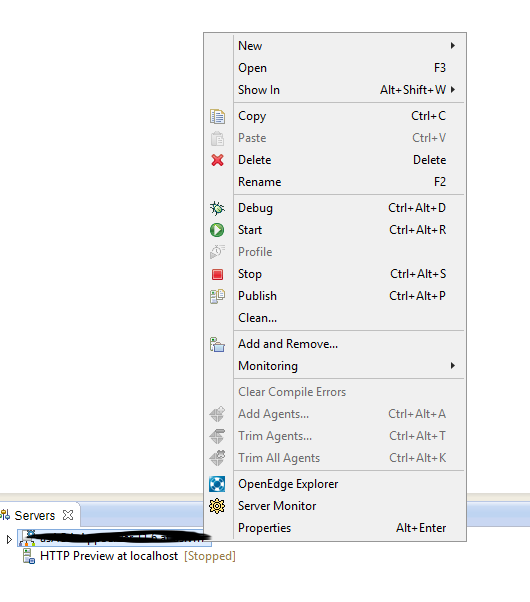 |
Once the associated server is running, requests of the form http://<host>[:port]/rest/webspeedService/<Resource URI> can be made. The Servers view can be used to increase/reduce the agents number. |
| Build & Integration | Once the server is started and synchronized, the resources can be accessed via URL (GET, POST, etc., for example in a browser). The responses are JSON objects. | Test runners for running a test case or test suite from the command line or launch configuration. | In the Servers view modules can be associated with servers. Then, these can be published to the local/remote server, following these events: •Adding or changing a file in a module •Adding a directory or subdirectory to a module •Removing a file from a module •Renaming an existing directory in a module •Changing the server publish directory, which includes either changing from the working directory of the server to a specific directory or changing the selected publish directory to a different value •Modifying the build path or PROPATH of a module's project •Adding a module to a server •Removing a module from a server |
Both at creation time and later, via Properties, the project can be assigned a DB connection. Various VM parameters can be set and the PROPATH can be edited. |
Both at creation time and later, via Properties, the project can be assigned a DB connection. Window > Show View > Other > Server > Progress OpenEdge Server Monitor displays the URI of the REST service. |
Both at creation time and later, via Properties, the project can be assigned a DB connection. |
| PASOE support | Yes | NA | No | NA | No | No |
| AppServer support | No | NA | Yes | NA | Yes | No |
A ChUI project is identical to an OE Project, but it uses TTY (ChUI mode) at runtime.
Other project types less relevant for our purposes are:- # Dynamics - A project for creating dynamic applications or components that can adjust or reconfigure their behavior at runtime. The user must choose a configuration file (
.xml) and a session type. - # GUI for .NET - A project for developing graphical user interfaces (GUIs) specifically targeting .NET environments and .NET specific widgets. The projects generates a
.clssource code file, a.prunner file and some configuration files:
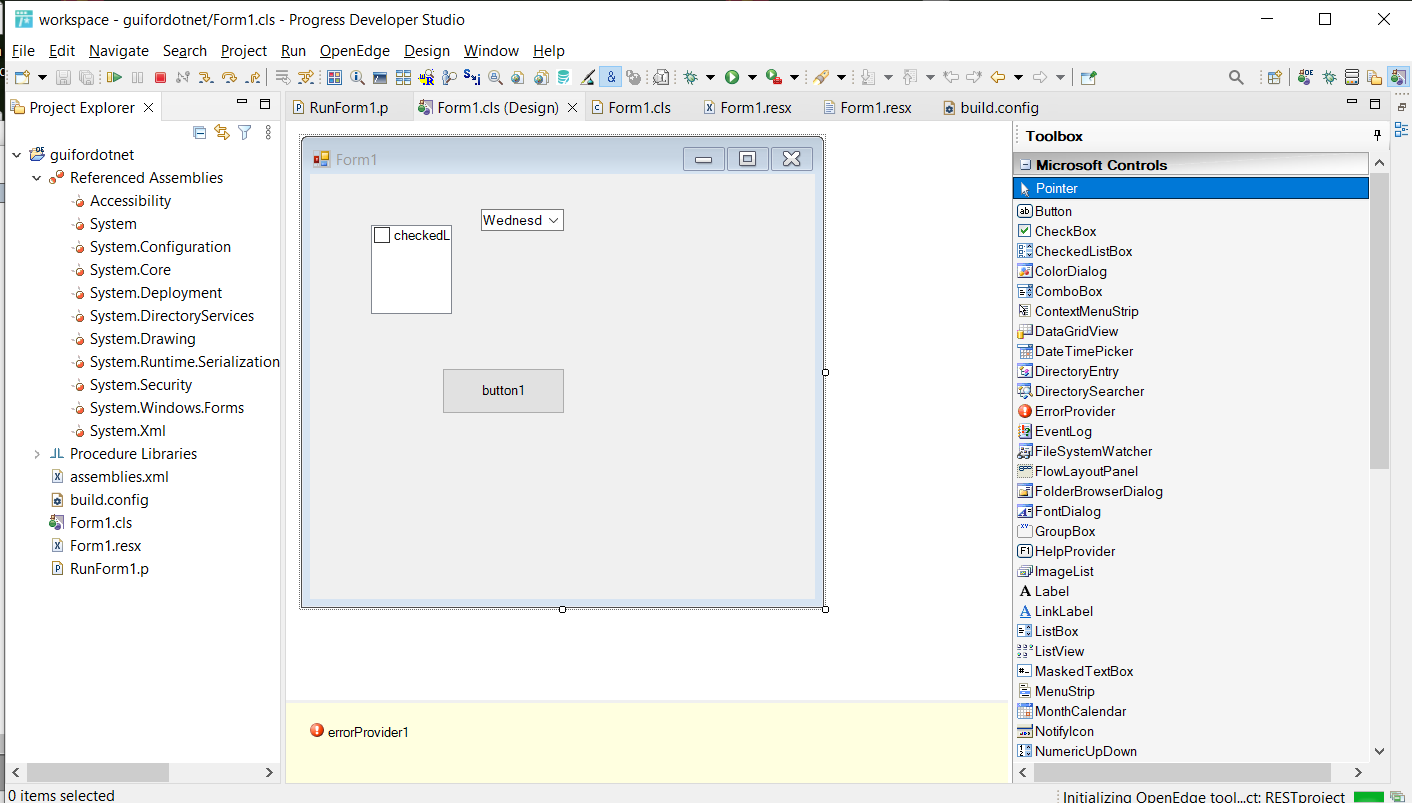
- # Web UI - A project focused on developing user interfaces for web applications, often involving HTML, CSS, and JavaScript. The filesystem generated is similar to the one of a Web App. It can be published using a server instance.
Define Service Interface wizard
New Project wizard
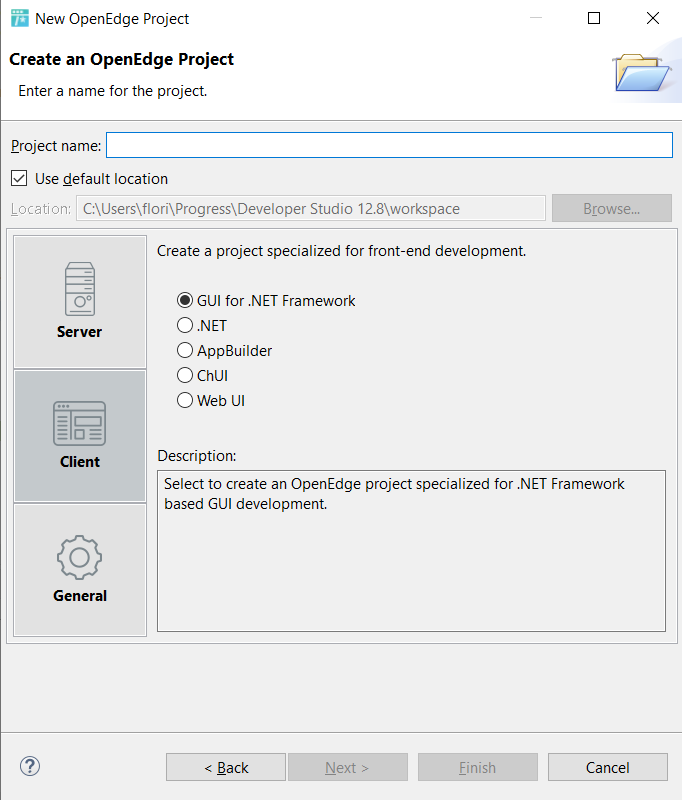

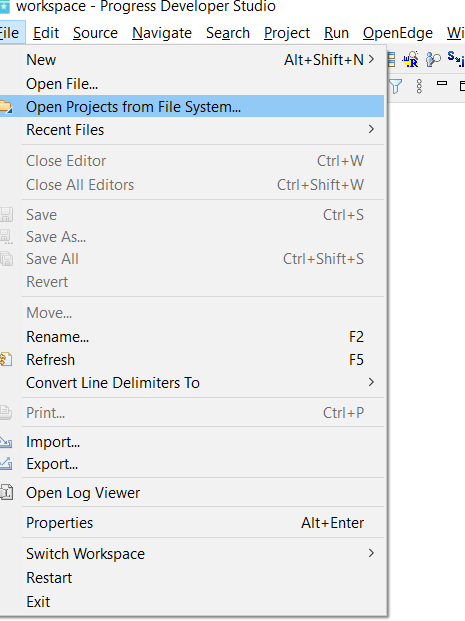
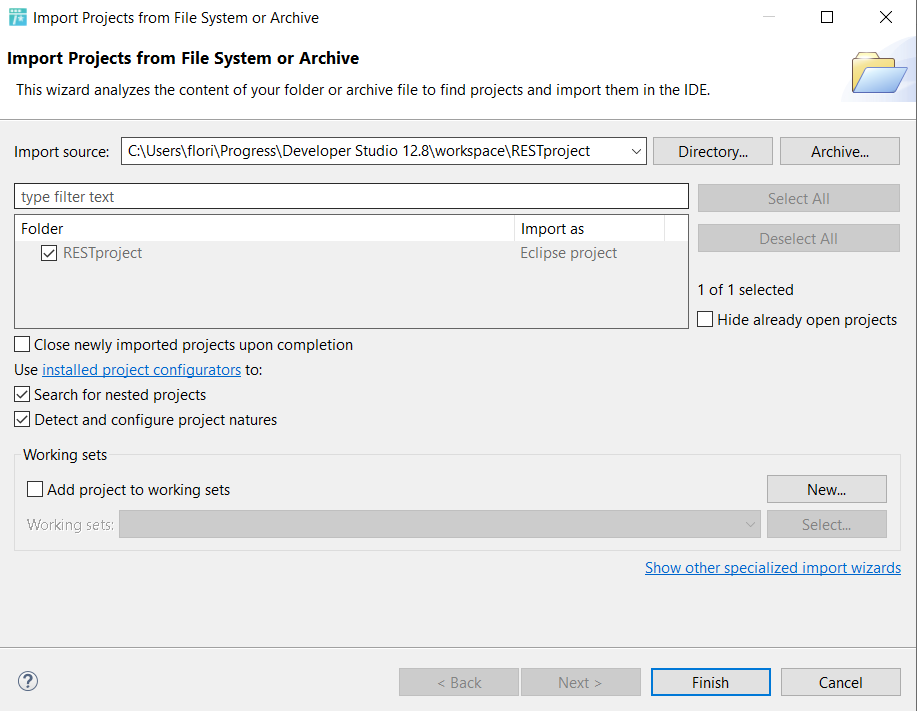
Opening Projects from Filesystem
Project Views
In the Window > Show View and Window > Show View > Other... menus, the user can inspect different aspects of the development environment. Some of them are:
- Outline - an overview of the project structure. The elements showed are:
- Definitons Block - a custom block wrapped between
&ANALYZE-SUSPEND _UIB-CODE-BLOCK _CUSTOM _DEFINITIONS ...and&ANALYZE-RESUME. - Main Block - a custom block wrapped between
&&ANALYZE-SUSPEND _UIB-CODE-BLOCK _CUSTOM _MAIN-BLOCK ...and&ANALYZE-RESUME. - Include files
- Variables (dynamic widgets will fall in this category)
- Widgets (including
BUTTONsandIMAGEs) - TempTables
- Triggers
- Procedures
- Function Prototypes
- Function Protorypes
- Function Implementations
Streams, simple
DOblocks and DB Objects are not taken into account by this view. The elements which are greyed out either belong to an.iinclude file or are not taken in consideration from preprocessing reasons, such as
   &if (10 < 0) &then
     define frame f2.
   &endif
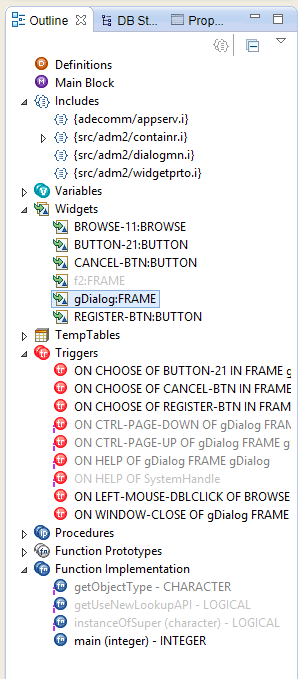
- Definitons Block - a custom block wrapped between
- DB Structure - an overview of the table of the current project showing schemata details (tables, fiels, sequences, etc.)
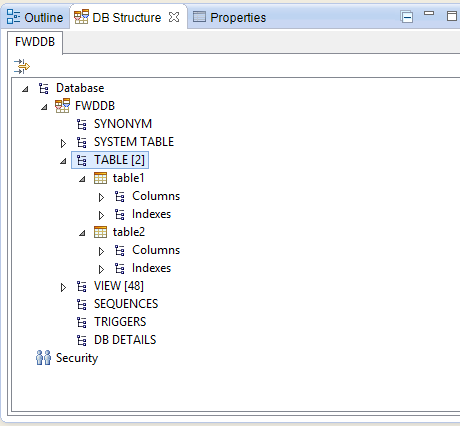
- ABL Unit - overview of the failed/passed tests. See the Unit project type in the table above.
- Servers - displays all servers and associated projects. The user can manage the servers, start, start in debug mode, restart and stop the server, etc. See the table above.
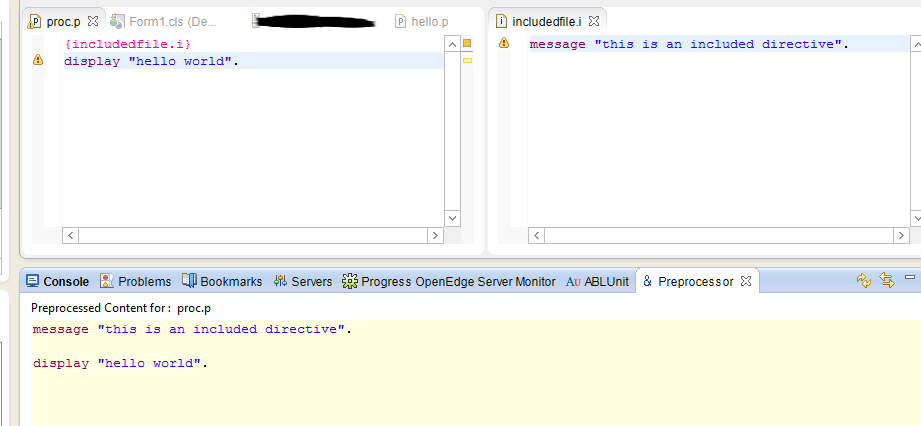
- Preprocessor - Displays the obtained code after preprocessing in a read-only mode. Has syntax highlighting:
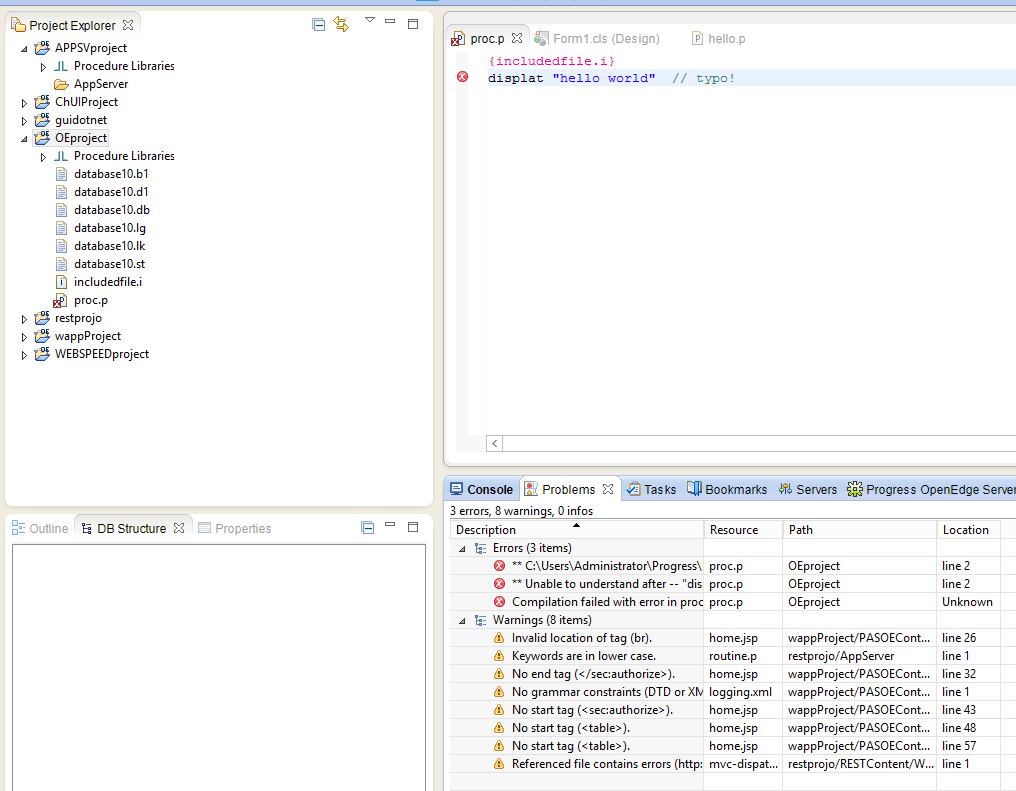
- Problems - information, warnings, quick fixes, errors, etc:
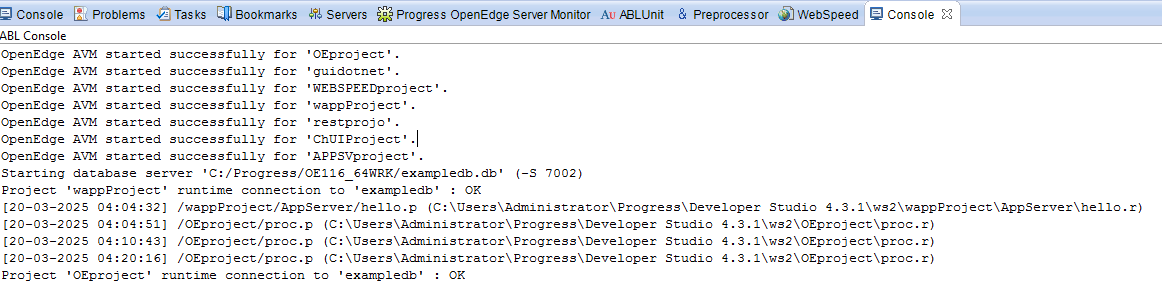
- ABL Console - shows the output of operations like connecting to a database.
- Properties - key - value pairs of properties for the selected project:
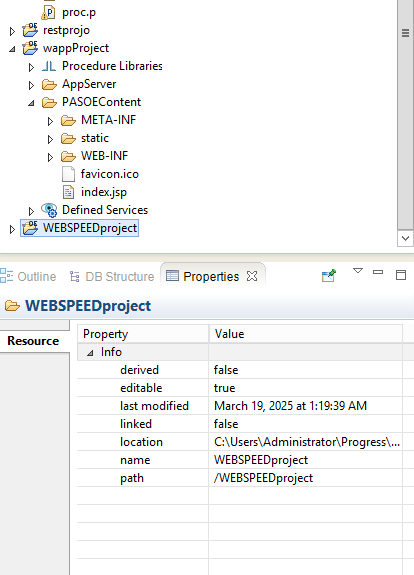
- Breakpoints - this view lists all breakpoints of all projects from the current workspace. By right clicks, new breakpoints can be added, they can also be enabled/disabled. The user can also:
- Remove selected breakpoint
- Remove all breakpoints
- Go to file for breakpoint
- Skip all breakpoints
- Serialize/Deserialize breakpoints in
.nkptformat
File Management
Files can be added once a project has been created. A short-cut for doing this is with the File → New menu item.
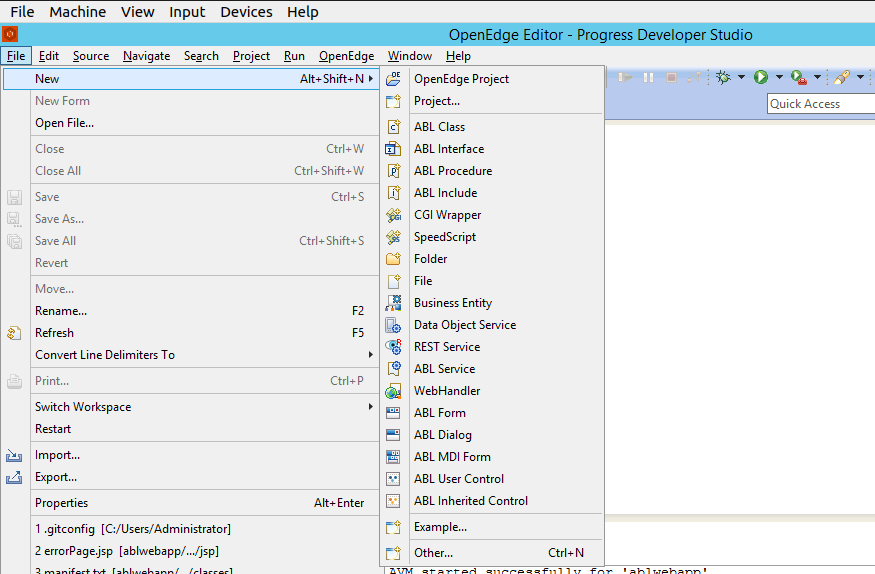
Alternatively, by pressing Other... the user has access to all the artifacts that can be created (including project types), these can be Progress specific files, XML files and even Java classes.
The files typically come with a basic documentation that can be filled up by the user. Some of the most relevant file types are:
1. Class files (.cls) - When creating a class, the user has to give it a name and has the option to specify the package, modifiers (e.g. abstract), super-classes, implemented interfaces, etc.
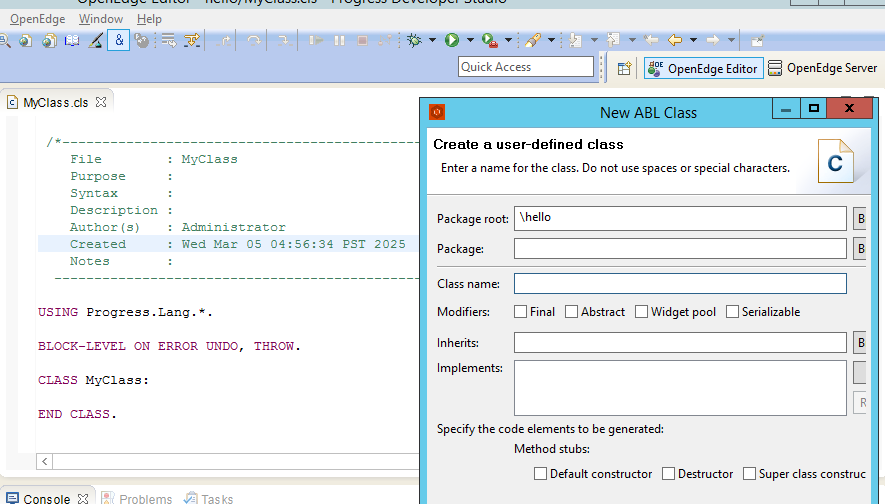
- Test Case Class - a single unit of testing in OpenEdge. It contains individual test methods that test specific pieces of functionality or logic in the application using assertions to verify that the results match expectations.
- Test Suite Class - a collection of test case classes. It groups multiple test cases together, enabling you to run all related tests at once. Usually, the tests aggregated together concern the same area of features.
2. Include files (.i) - These files are commonly used to manage and organize reusable code and resources. These include files typically contain procedures, functions, constants, or variable definitions that you want to reuse across multiple parts of your application. Their content is inserted into the main code before compile takes place.
3. Procedure file (.p) - A procedure file stores an external procedure, which can have input/output parameters, internal procedures, nested/single blocks of code.
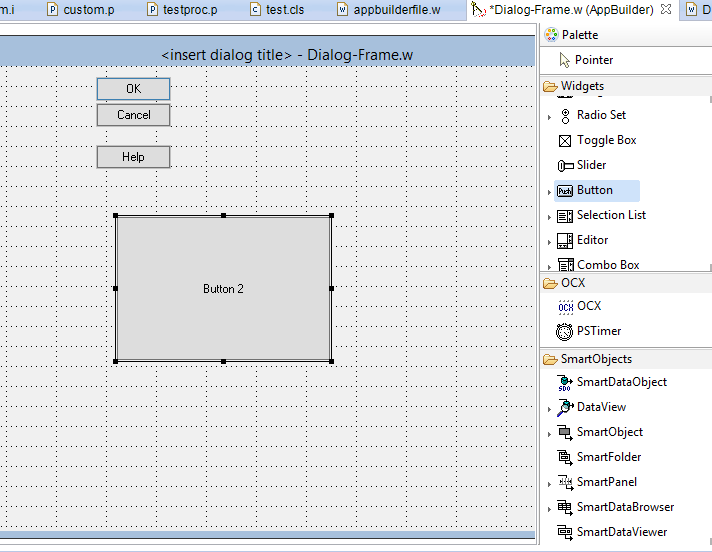
4. Window procedure file (.w) - These are UI oriented procedures (Graphical/Character-based). One convenient way to create a window procedure file is by selecting the AppBuilder/UI Design and then specifying the desired container or smart data object: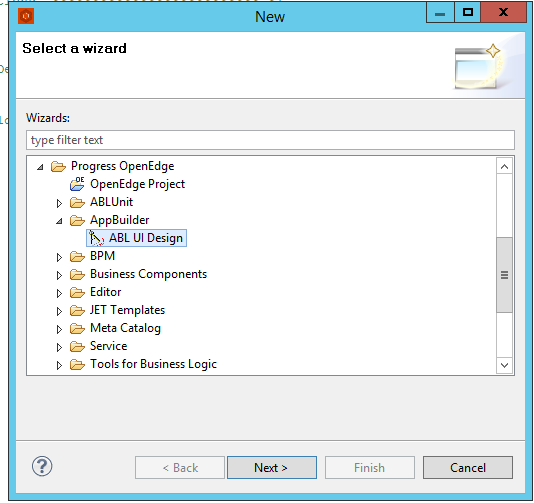
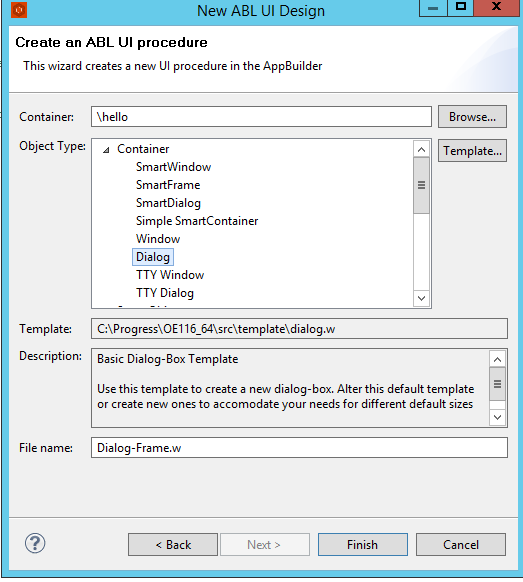
Doing so enables the user to open the file in AppBuilder UI Designer.
Development
The App Builder
AppBuilder is a graphical development tool that helps build and manage applications. The user can manipulate widgets and add features using drag-and-drop tools, which automatically generate the corresponding 4GL code.
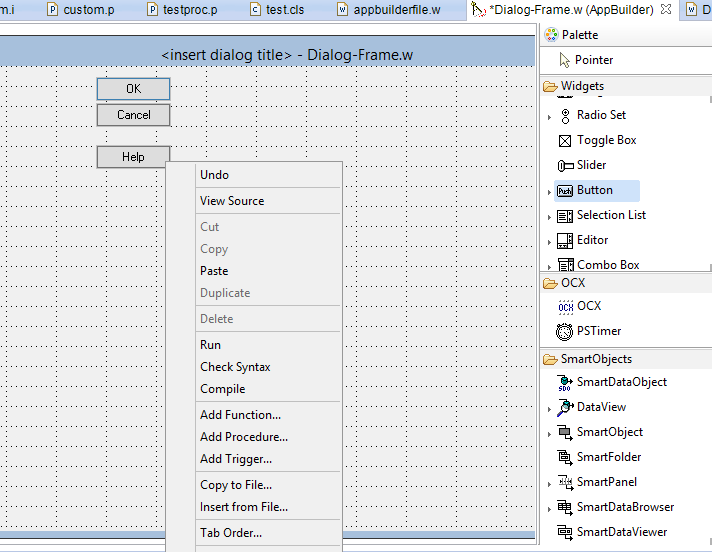
The key features of the AppBuilder interface are:
- Adding triggers for widget-specific events, such as
CHOOSE,ENTRY,ENDKEY, etc. - Adding, resizing, customizing and removing widgets (together with their triggers).
- Adding smart objects, such as SmartDataObject, SmartDataBrowser, etc.
- Adding procedures and functions to the file.
- Inspecting the source code associated with components.
Coding
The OE Studio Developer coding environment provides features that help the programmer develop the application efficiently. These are:
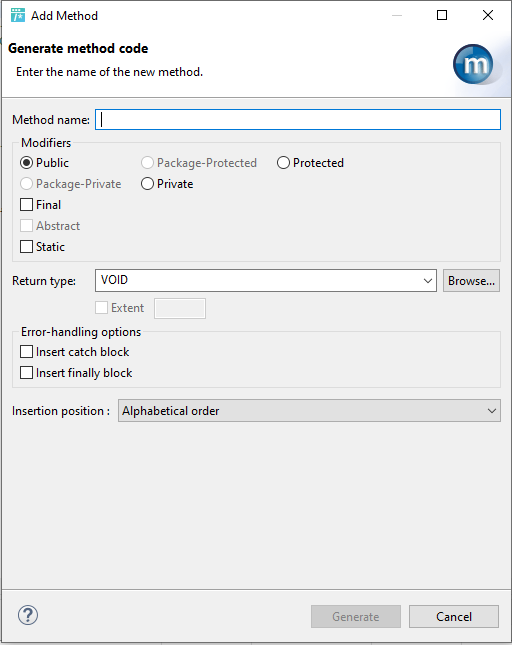
- Code Generation - By Right-click > Source in a 4GL source file, the user can generate structures like constructors, methods, events, implement/override methods, etc.
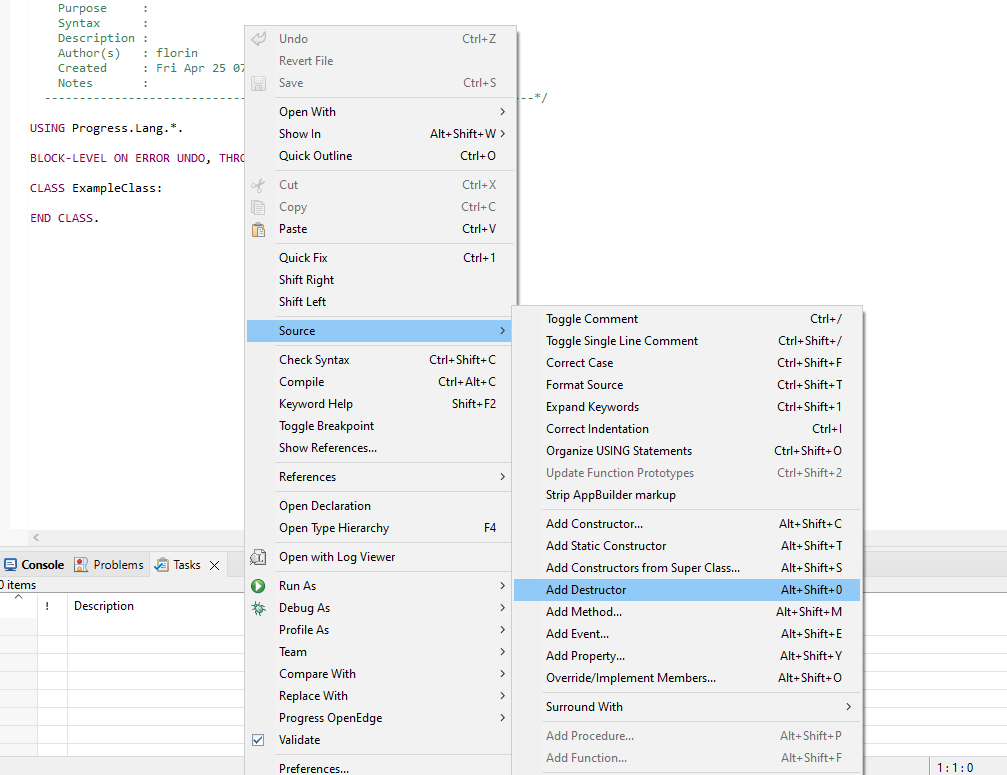
For.iand.pfiles, only procedures and functions can be generated. Upon generating them, several options can be configured, such as access modifier, static/nonstatic, insertion position, etc.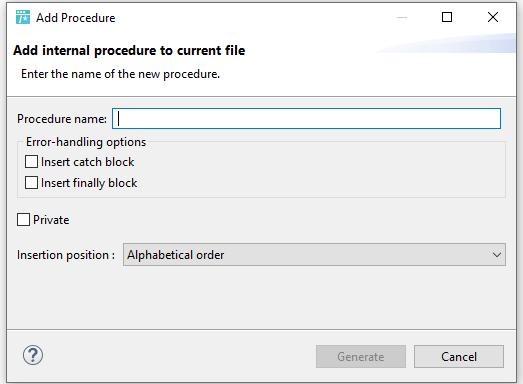
- Syntax Highlighting
- The keywords, data-types, comments, included
.ifiles, string literals and numbers are highlighted.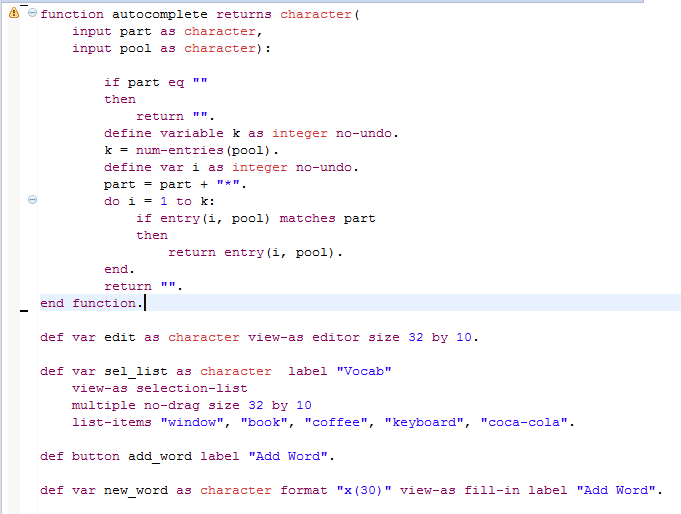
- Preprocessor directives like
global/scoped definesand conditionals always un-highlighted (greyed out). Preprocessor references are also greyed out if they are not part of string literals. In that case, they are highlighted the same as the literals. - Include files arguments are highlighted if they are not part of a string literal (with pink instead of grey). If they are part of a string literal, they have the same highlighitng:
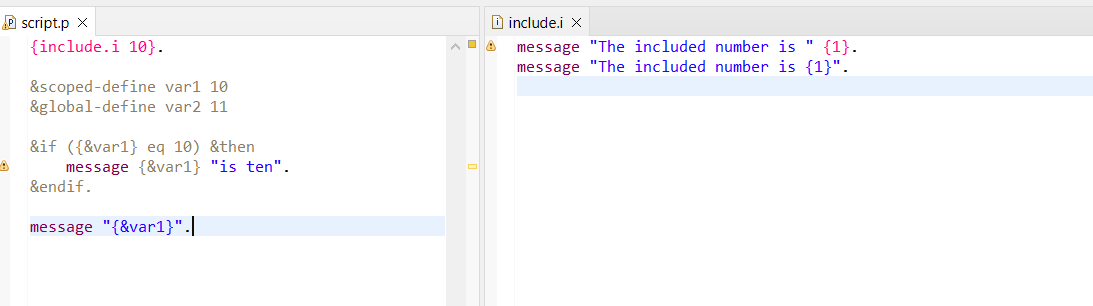
- The keywords, data-types, comments, included
- Code folding - Internal procedure, inner blocks (IF, CATCH, LOOPs, FOR, etc), class methdos, triggers (which are a type of internal procedures) are all foldable - can be temporarily hidden so the file can be scanned more easily. This is done by pressing the
-/+on the left side.: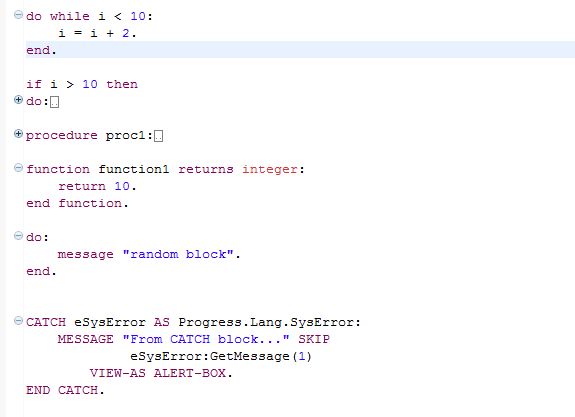
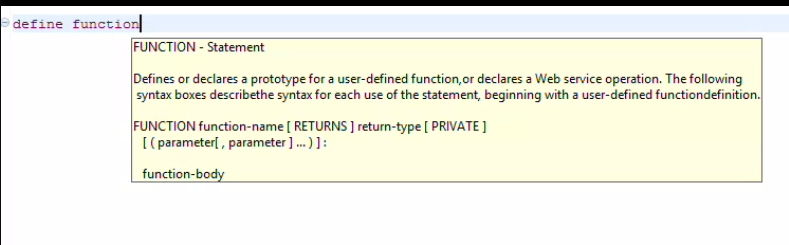
- Syntax reference help - When hovering over a start of a structure definition, the syntax documentation appears as a pop-up. Note that in this case,
define function ...is an invalid syntax for a phrase start, but in order for the IDE to detect the issue, we have to save the file. The docs pop-up only regards the hovered token -function.
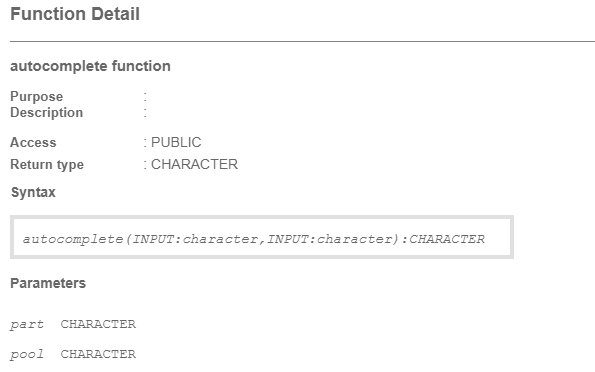
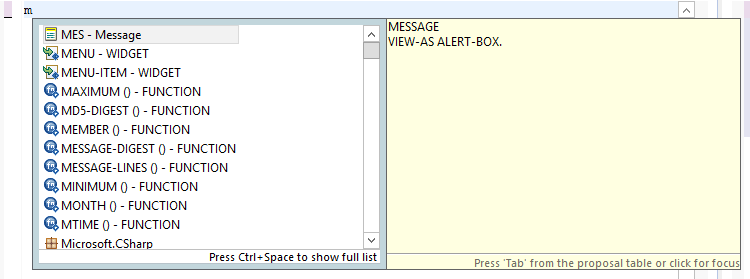
- Method Auto-completion - When calling an object method or accessing the attributes, a window presenting the available options pops-up, together with a small description. Unlike in modern IDEs, the window pops-up only when ':' is typed. If we quickly type the beginning of the method/attribute, the window does not pop-up and there is no auto-completion. The use can list of syntax elements that are valid for any context by pressing CTRL+SPACE.
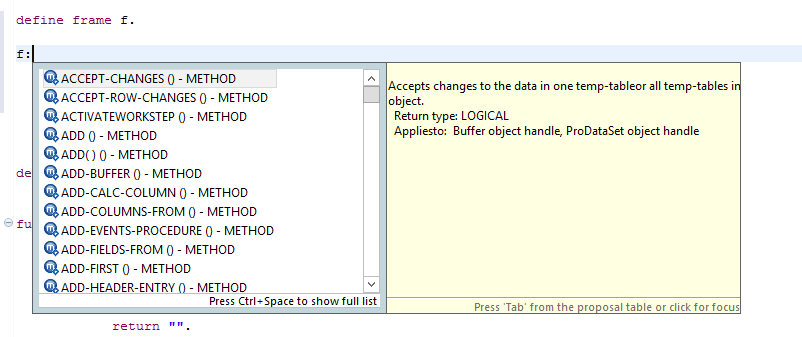
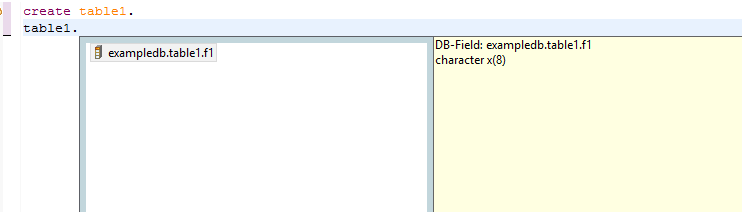
This also happens for database objects - writing the object name followed by a dot will trigger a pop-up like this:
- Syntax Assistance & Checking - If a block of instructions has a syntax issue, OE IDE will mark the first line of the instruction with a red circle marked with X. By hovering it the programmer can learn what the issue is. The downside is that the block can be very long, but the red X will always appear on the first line, regardless of the specific line which causes the issue.
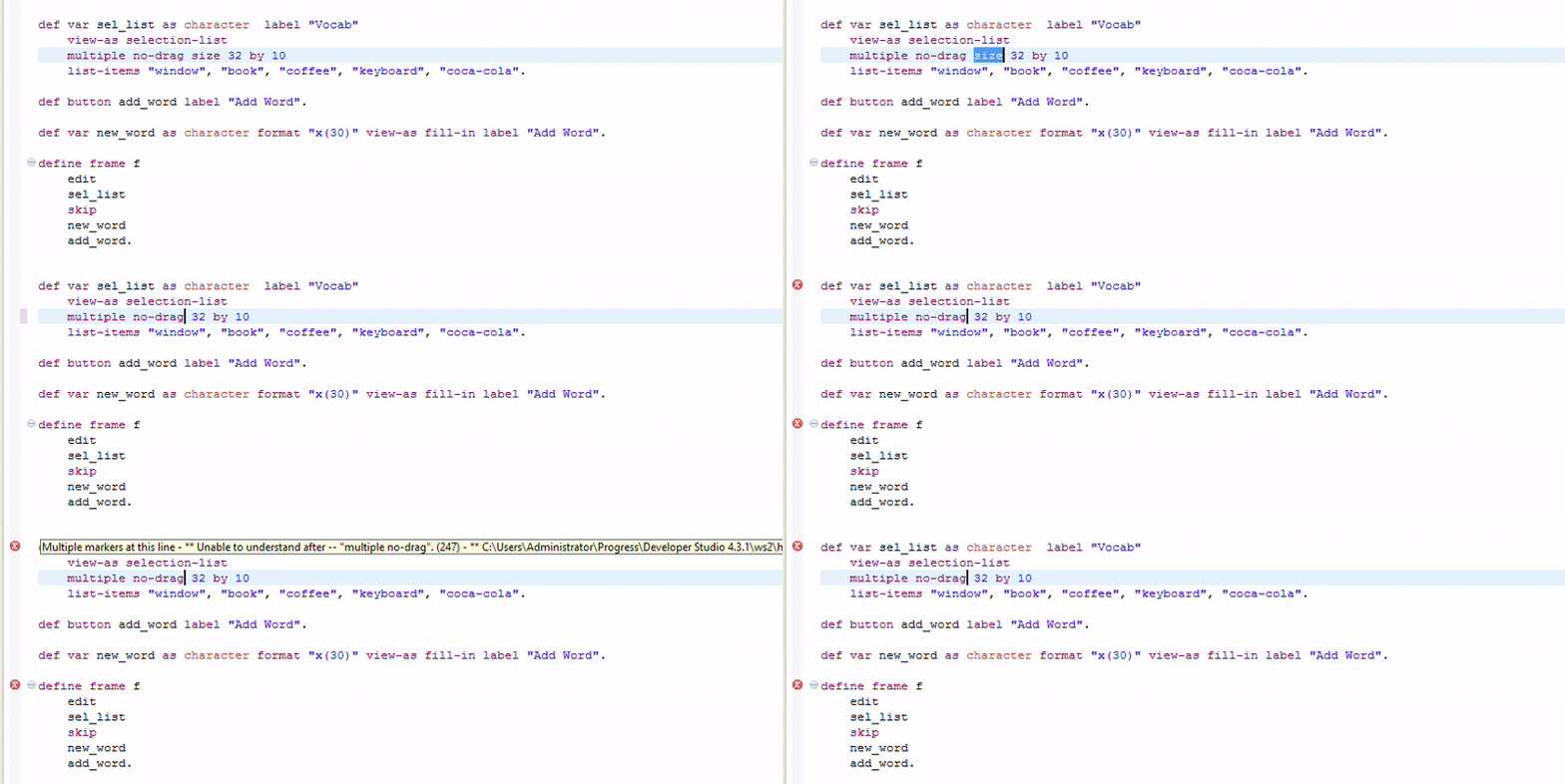
As opposed to this, modern IDEs highlight the exact zone where the issue is encountered, by red underlines.
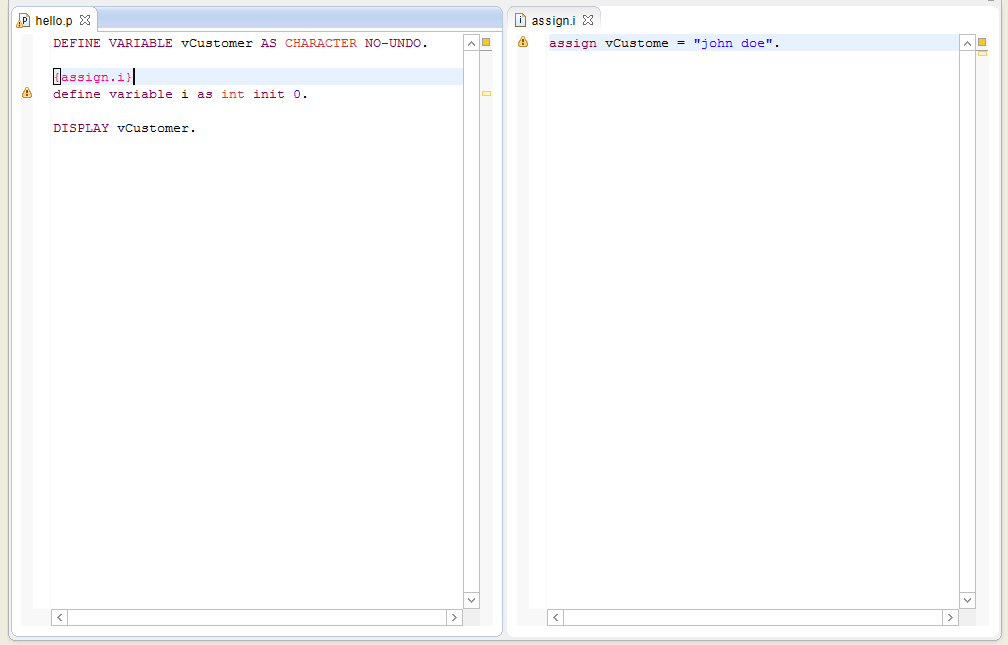
Initially, the include files are syntax-highlighted if the syntax is correct and valid from OE perspective.
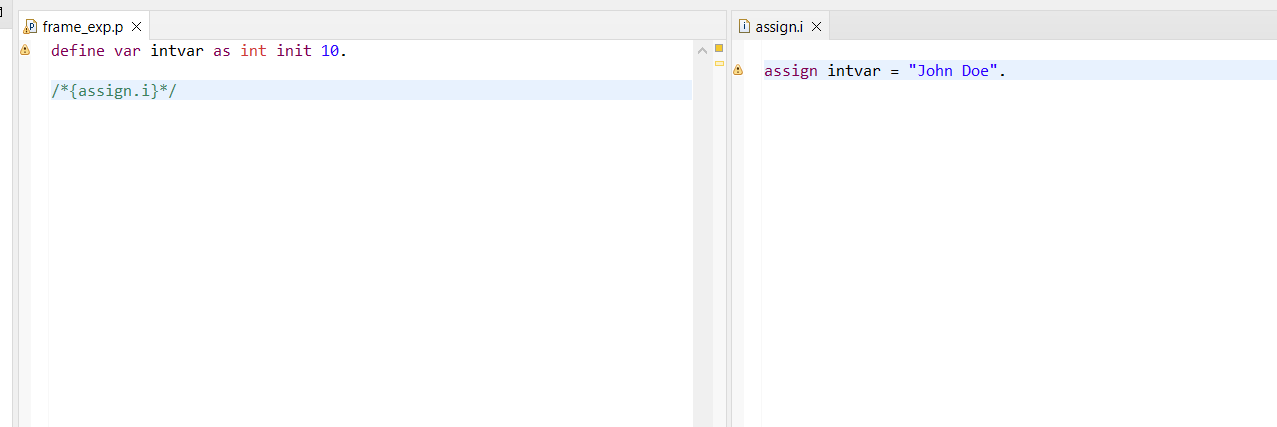
Then, once that file is actually used in a procedure, additional checks are made, such as is the syntax valid?, does the type value correspond to the underlying type?, does the identifier exist?, etc.
If any semantic issues are detected, they are signaled in the.ifile: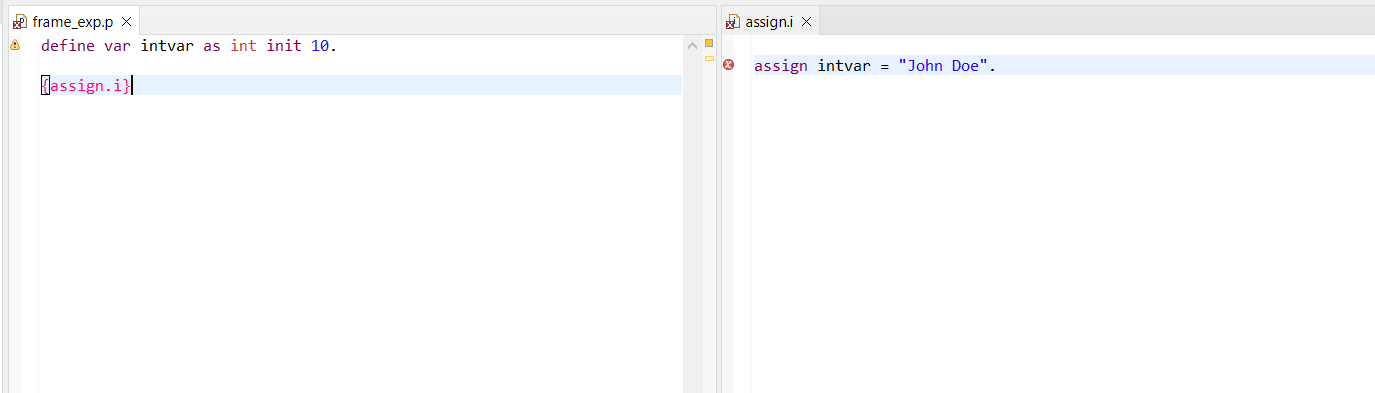 .
.
valid syntax, but semantically wrongIf any syntactic issues are detected, they are signaled in the calling procedure:
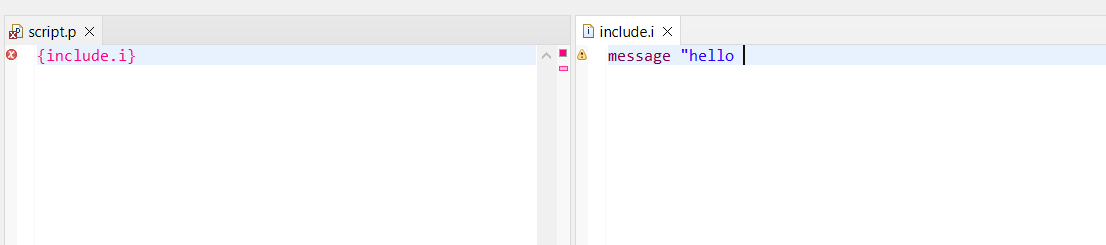
invalid syntax
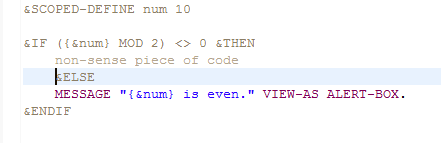
Similarly, when preprocessor if statements consist of an ill-written piece of code, the error is signaled only if that piece of code will be kept after pre-processing.
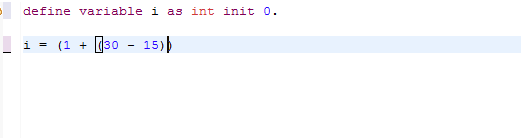
OE IDE also provides auto-bracketing and bracket-matching. The former automatically writes the closing bracket once (, [ or { is typed. The latter highlights the corresponding opening bracket/brace for the ), ] or } near the cursor:
Auto-completion is also valid for single-quotes ' and double-quotes ". Auto-completion does not happen for inner blocks. The END keywords are not automatically inserted.
- Preprocessor - The ABL preprocessor allows defining constants, macros, and conditional statements to make code more flexible and reusable. The key features are
- Preprocessor names - these are compile-time constant that can be global and non-global. Here is an example of two preprocessor names. Because
GOODBYEis&SCOPED-DEFINED, it will not be printed by the main procedure:&GLOBAL-DEFINE HELLO "Hello world!" &SCOPED-DEFINE GOODBYE Goodbye-cruel-world
(include.i file){include.i} MESSAGE {&HELLO} VIEW-AS ALERT-BOX. MESSAGE "{&GOODBYE}" VIEW-AS ALERT-BOX.
(procedure.p file) - Argument references - include files
.ican use references passed to them by{k}, wherekis the order positional index of the argument. - Conditionals - Conditional preprocessing controls which code is compiled based on conditions using
&IF,&ELSEIF,&ELSE, and&ENDIF. The OE IDE will indicate which path will be executed, since this is known at compile time: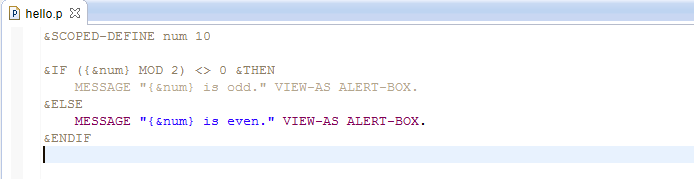
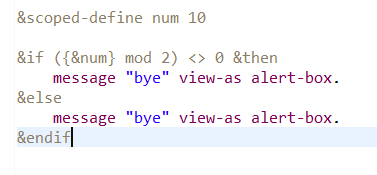
This feature could not be reproduced in OE IDE 12.8, but it is a nice feature to have:
- Preprocessor names - these are compile-time constant that can be global and non-global. Here is an example of two preprocessor names. Because
Below is an example that shows the use of argument references and conditions in order to compute if a number is odd or not:
&SCOPED-DEFINE num {1}

&IF ({&num} MOD 2) <> 0 &THEN
    MESSAGE "{&num} is odd." VIEW-AS ALERT-BOX.
&ELSE
    MESSAGE "{&num} is even." VIEW-AS ALERT-BOX.
&ENDIF
(include.i file)
Usage: run the line and pass an argument directly {include.i 10}.- Navigation features - OE IDE offers features that help the user navigate through the code quicker. This refers to inspecting the declaration/definition of elements such as variables, objects, classes, methods, include files, internal/external procedures. There are several ways to do this.
- Outline view and Quick outline - The outline is a structure summary for the current procedure file. For more details see Project Views subsection. It can be started either by the Outline view on the bottom left, or by right-clicking the procedure file and selecting Quick Outline:
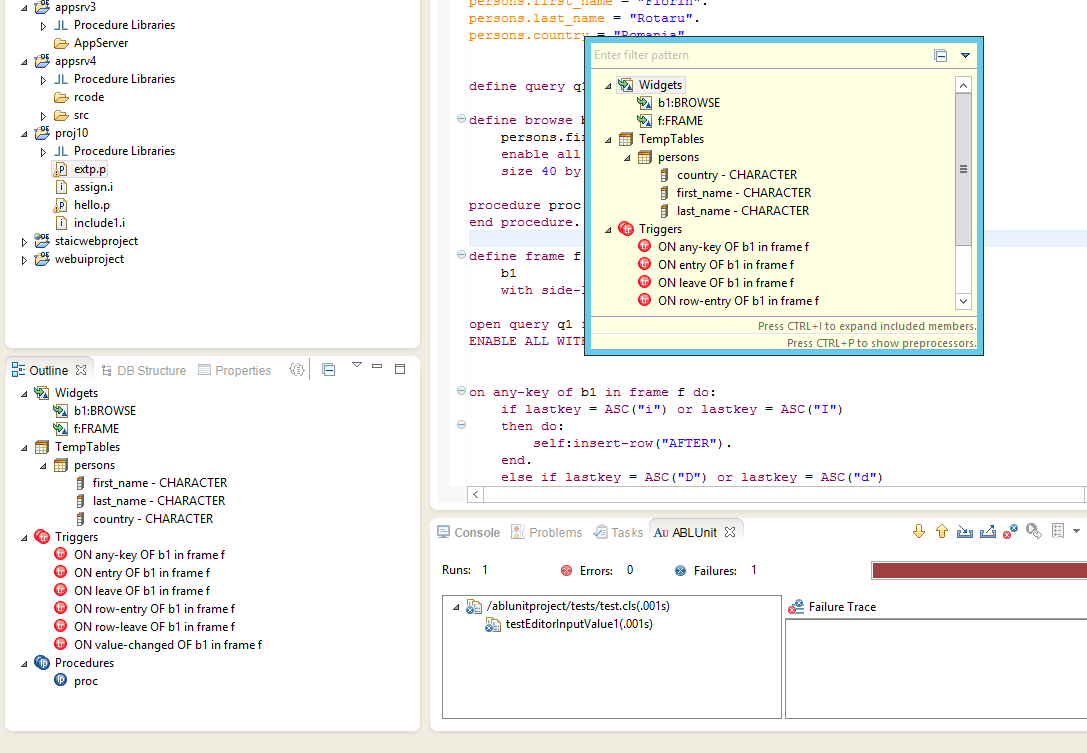
- Press CTRL+click, Right Click → Open Declaration or F3 when the cursor is above them - if the object is reachable, any of these 3 ways will open the place of declaration. If it is in the same file, the declaration line will be selected. For internal/external procedures, the name may be passed as a string. Nevertheless, the navigation works in this case too. There is no extension constraint when it comes to navigating to a file that is called with the
RUNcommands. The GIF below illustrates how CTRL + Click workds:
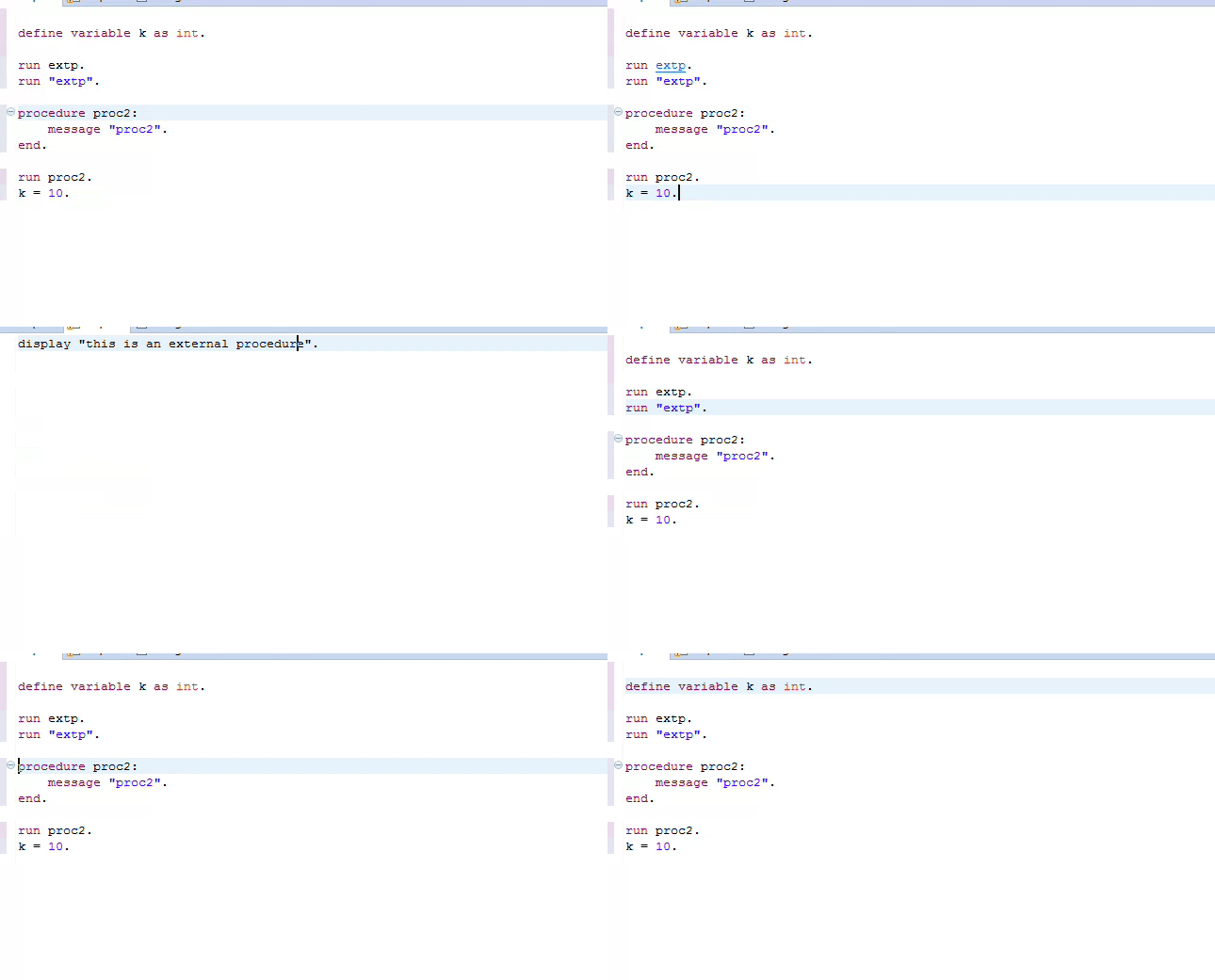
Resources navigable by Right Click → Open Declaration:
- Include files
- Variables
- Widgets (Static widgets)
- TempTables objects
- Functions/External Procedures/Internal Procedures
- Preprocessor scoped/global definitions (e.g.
{&var_name}).
- Show references - by right clicking in the source file and selecting show references, a dialog opens which lists the include files
.iand allows to open them:
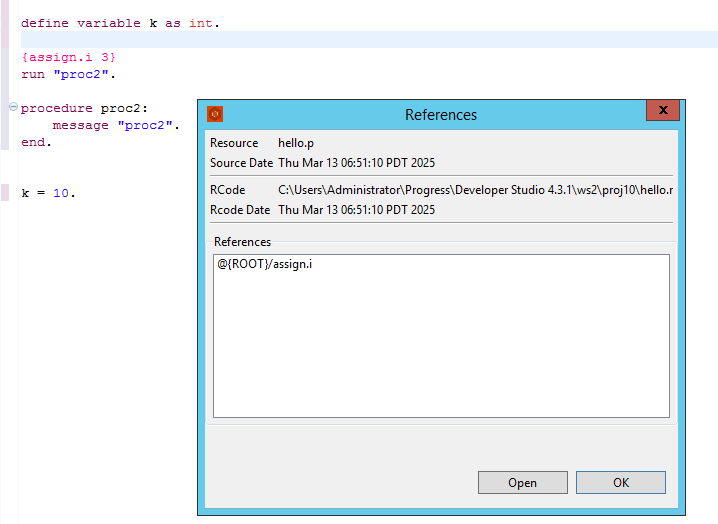
The user may navigate to the previous place by pressing Shift + ←.
Compiling/Building
Window procedure files and procedure files can be run directly when selected. By pressing the green Run button, the file will be built and run.
Run Configuraiton.
There is also the option to configure the Run parameters. Under the Main menu, the user can select the OpenEdge version, enable the batch mode or the TTY mode for runtime.
Startup
Under the startup menu item, the user can add or change the value of startup parameters. There is also the possibility to add new startup parameters with custom values by clicking Variables → New Variables . These can be retrieved using the SESSION system handle. This is an example of all startup parameters for a run.
-pf C:\Progress\OE116_64\startup.pf,-cpinternal ISO8859-1,-cpstream ISO8859-1,-cpcoll Basic,-cpcase Basic,-d mdy,-numsep 44,-numdec 46,(end .pf),-s 200,-mmax 65534,-T C:/Progress/OE116_64WRK,-db exampledb.db,-H localhost,-S 7002,-debugalert,-rereadnolock,-inp 16000,-tok 4000,-nosplash,-param -b,-p C:\Progress\OE116_64\oeide\eclipse\plugins\com.openedge.pdt.debug.core_11.6.3.00\abl\_debuglauncher.p
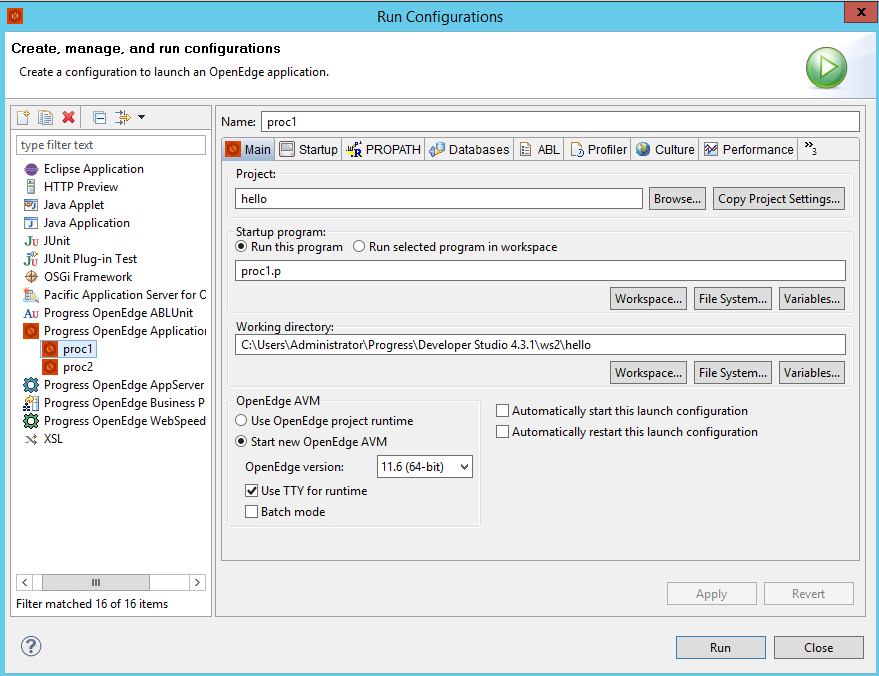
(Main parameteres)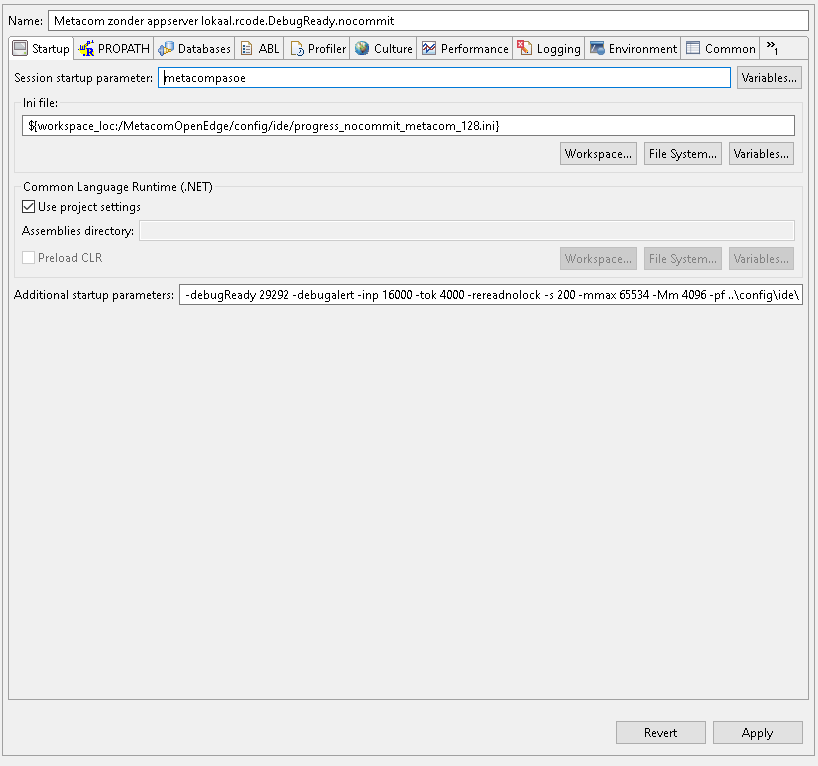
(Startup parameters)
PROPATH
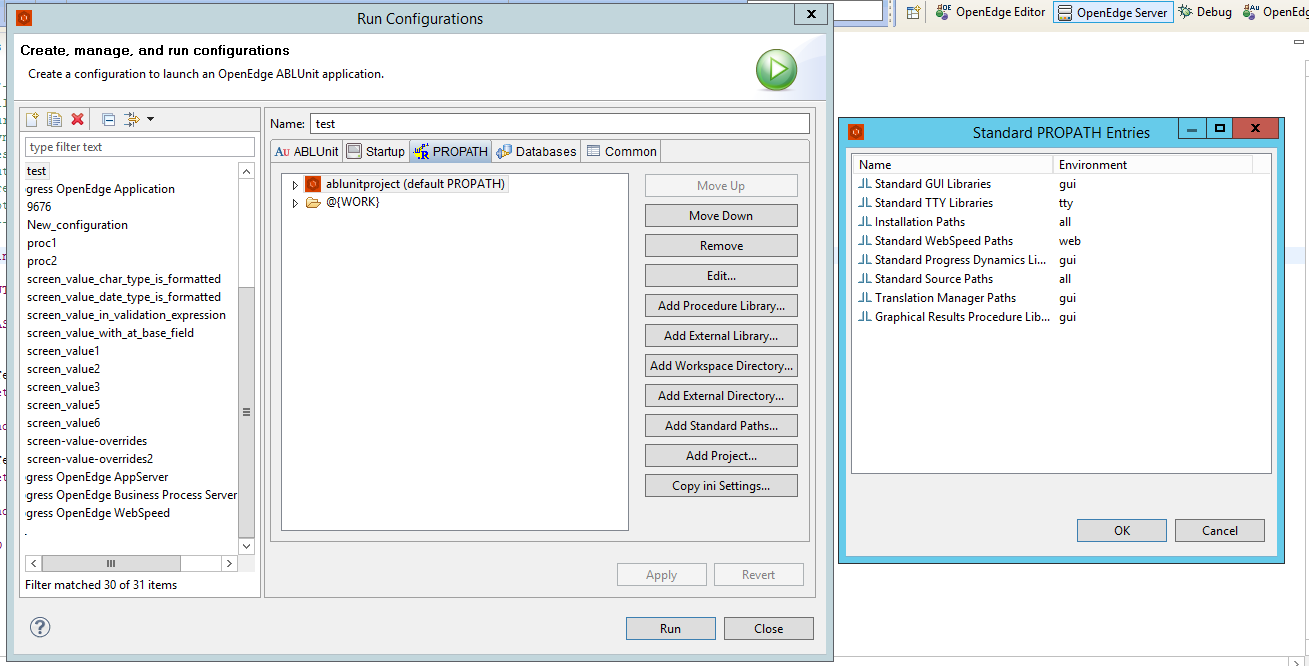
Under the PROPATH menu tab, the user can control where OE searches for files/procedures when the application is launched. On the right there are various options to edit the PROPATH, such as changing their order, adding libraries/paths (like standard GUI & TTY libs):
Databases
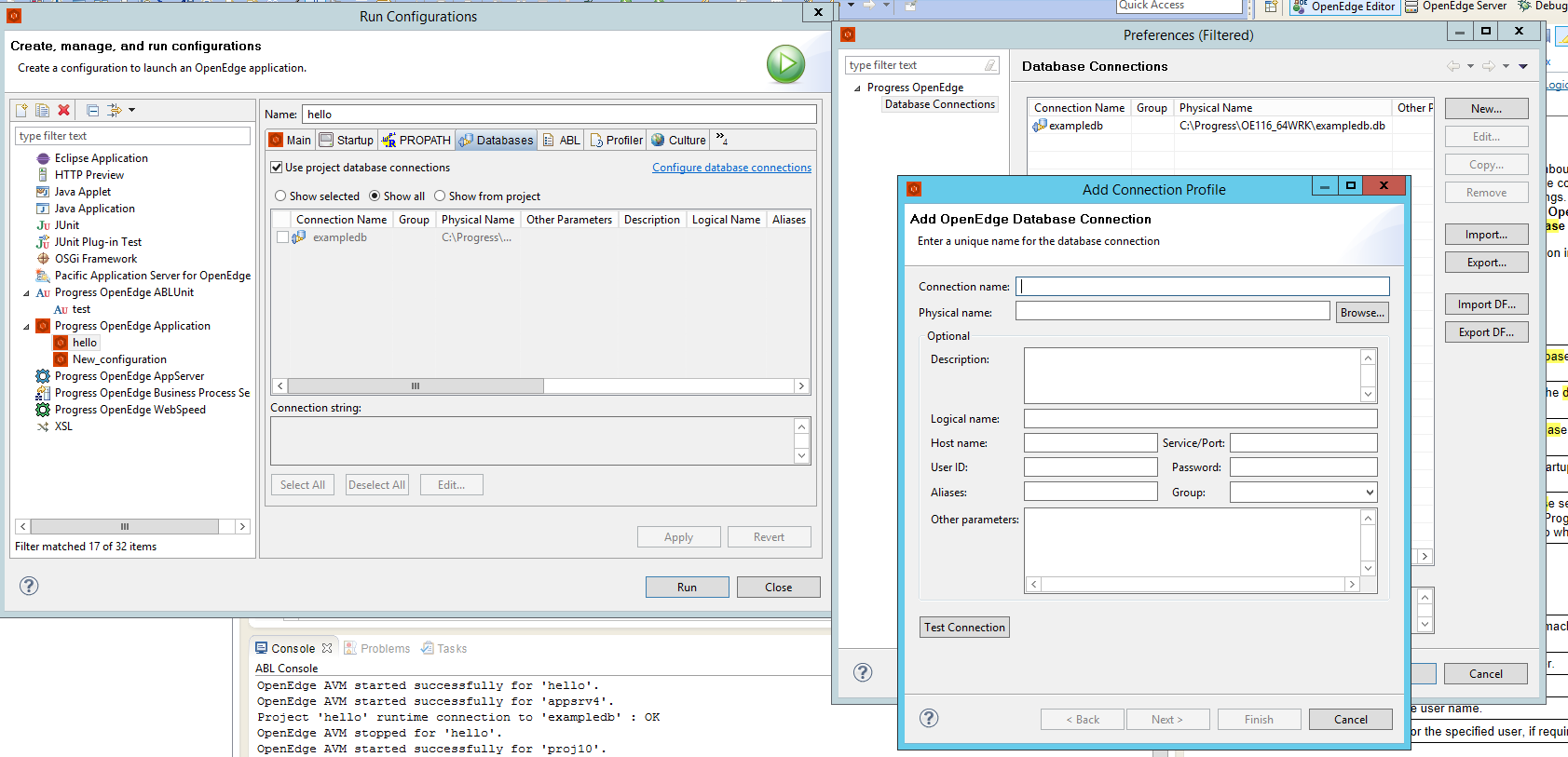
The Databases menu tab shows information about the project's database connection and other existing databases, together with parameters like name, host, port, etc. One can add new databases by clicking Configure database connections and then selecting the New option.
ABL
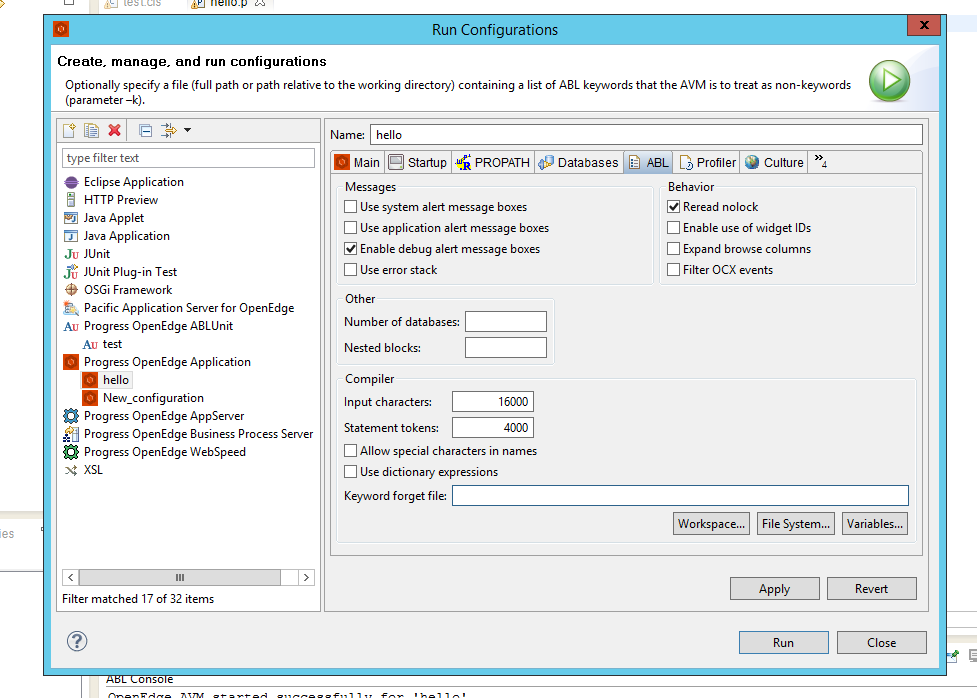
The ABL menu tab allows users to configure execution settings for Progress OpenEdge ABL applications, including message handling, compiler options, database access, and runtime behavior. For instance, the user can limit number of tokens or the length of the launching command, configures how alert and error messages are handled during, specift the number of accessible databases, etc.
Culture
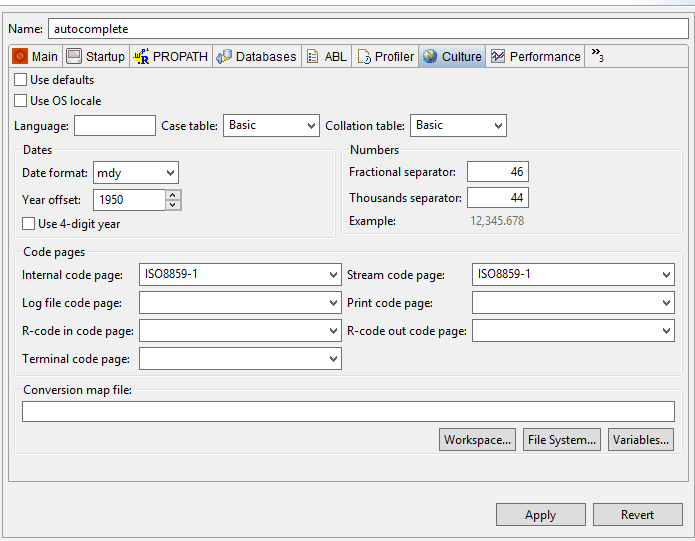
The Culture menu tab handles internationalization operations that deal with ABL behavior (e.g. database date-time format). The complete list is presented in this PSDOE Guide.
Profiler
The Profiler menu tab allows attaching profiler to a session. Once the profiler is activated, the user has several options documented in this PSDOE guide.
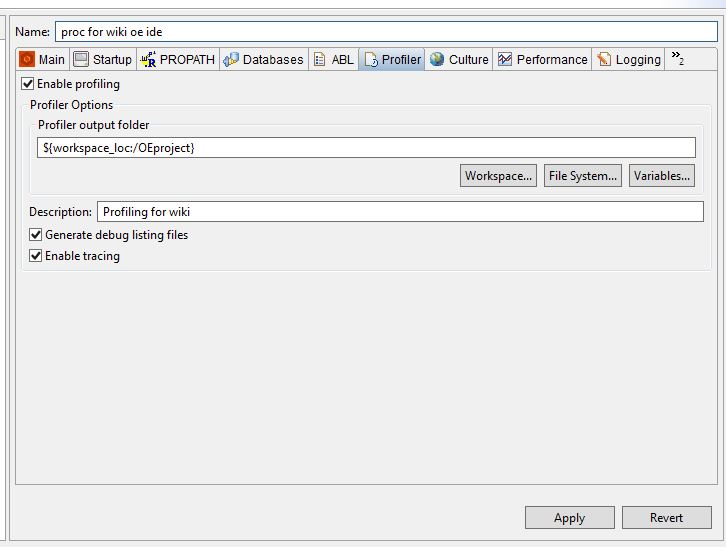
We present a sample code and the profiling outputs provided. The Generate debug listing files and Enable tracing are activated.
FUNCTION main RETURNS INTEGER (input a as int):
    RETURN 10.
END FUNCTION.

define variable i as int init 0.
define variable lch as char init "".
i = main(0) - 10.

do while i < 1000:
    lch = lch + string(i).
    i = i + 1.
end.
pause 3.

run printhw.p.
display lch.
(proc.p)
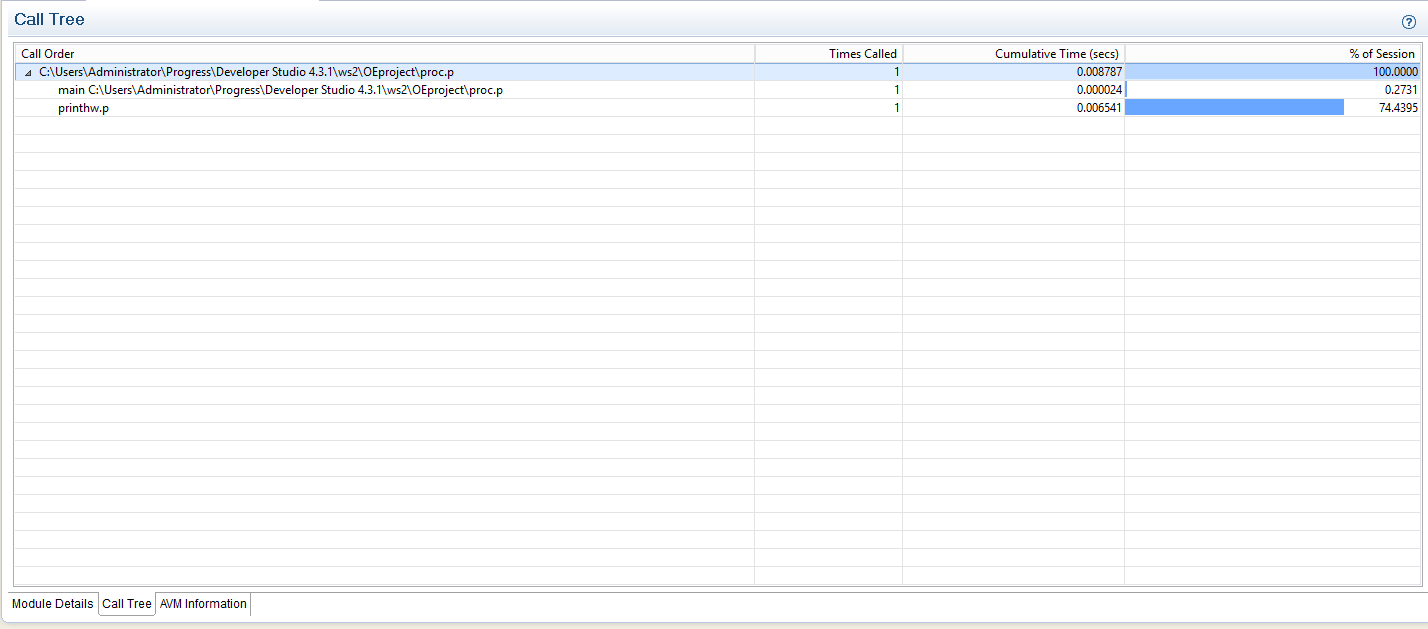
The result: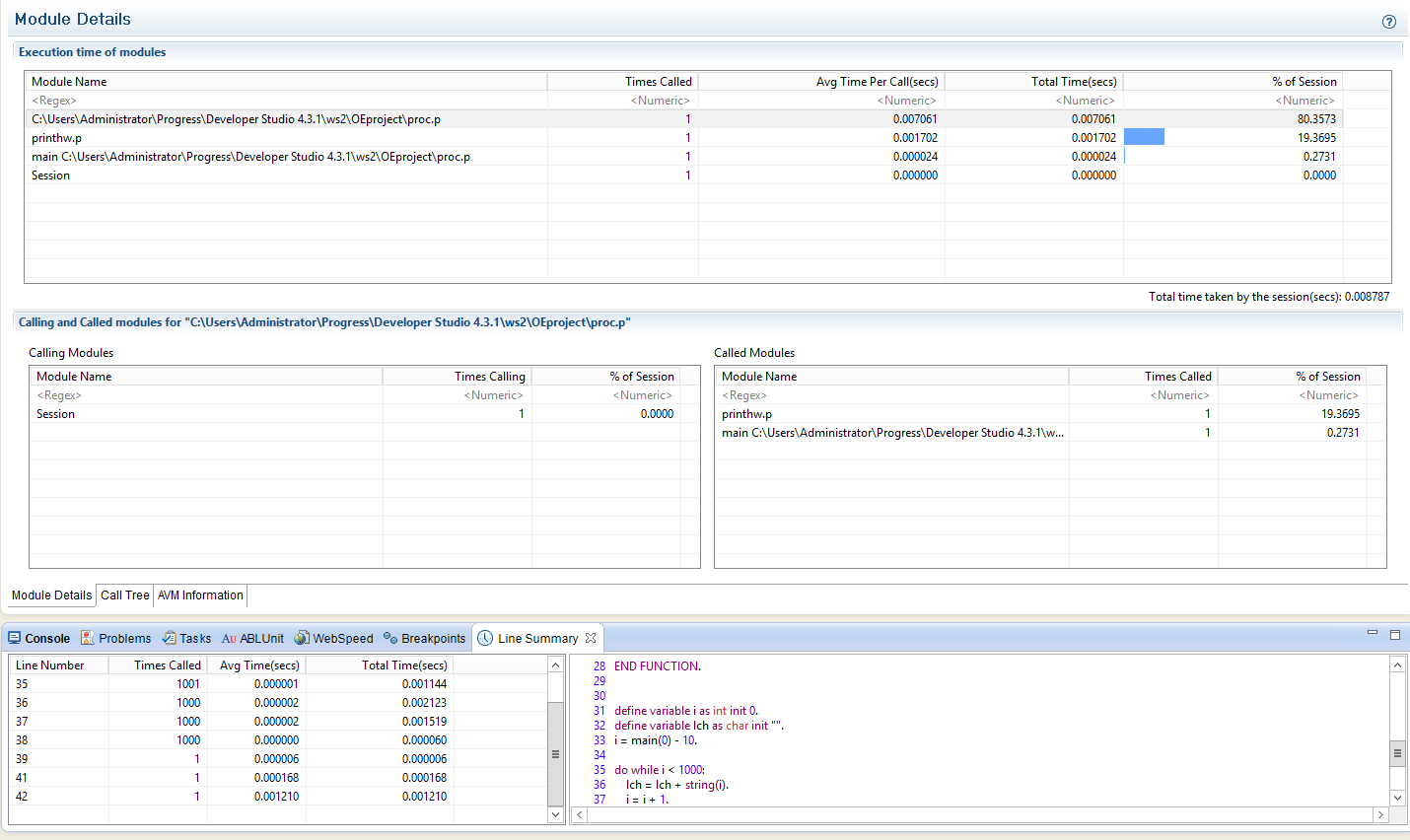
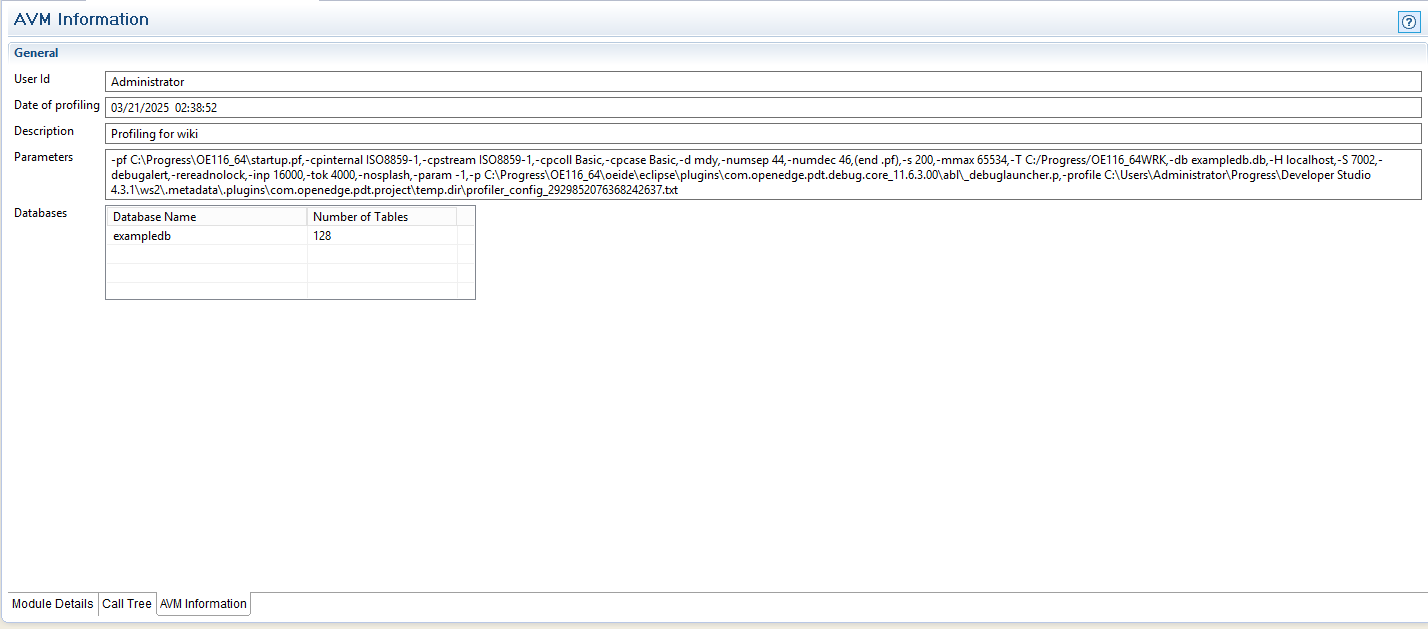
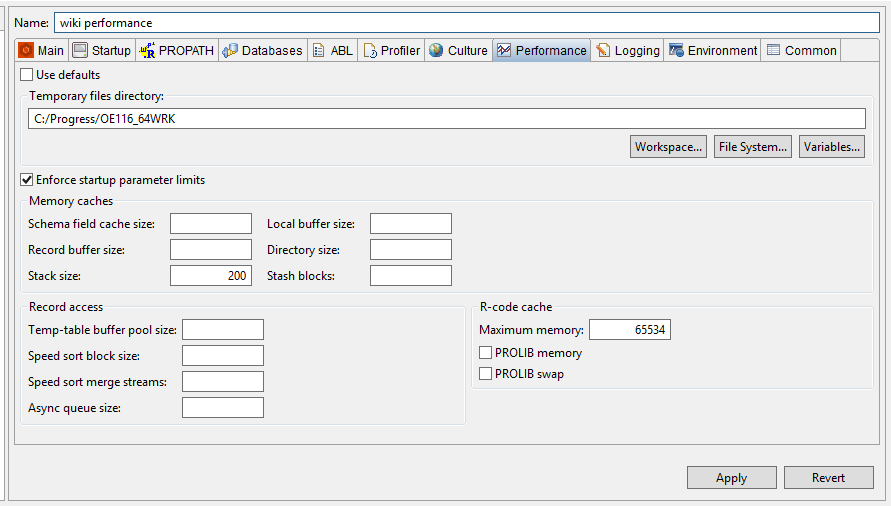
Performance
The Performance tab handles the options that affect the performance of applcations, such as caches sizes, record access, etc. The full list is in this PSDOE Guide.
Logging
The Logging tab handles the options of logging the run of ABL applications.
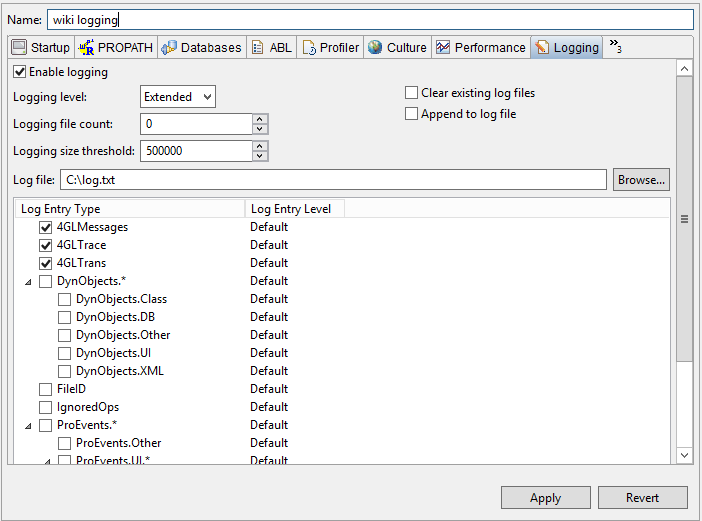
For the same proc.p procedure above, this logging configuration yields
[25/03/21@04:15:05.255-0700] P-004012 T-004248 1 4GL -- Logging level set to = 5
[25/03/21@04:15:05.256-0700] P-004012 T-004248 1 4GL -- Log entry types activated: 4GLMessages,4GLTrace,4GLTrans
[25/03/21@04:15:05.295-0700] P-004012 T-004248 2 4GL 4GLTRACE       Func main "0" [Main Block - C:\Users\Administrator\Progress\Developer Studio 4.3.1\ws2\OEproject\proc.p @ 33]
[25/03/21@04:15:05.295-0700] P-004012 T-004248 3 4GL 4GLTRACE       Return from main "10" [C:\Users\Administrator\Progress\Developer Studio 4.3.1\ws2\OEproject\proc.p]
[25/03/21@04:15:08.289-0700] P-004012 T-004248 2 4GL 4GLTRACE       Run printhw.p [Main Block - C:\Users\Administrator\Progress\Developer Studio 4.3.1\ws2\OEproject\proc.p @ 41]
[25/03/21@04:15:08.294-0700] P-004012 T-004248 3 4GL 4GLTRACE       Return from Main Block [printhw.p]
[25/03/21@04:15:08.298-0700] P-004012 T-004248 3 4GL 4GLTRACE       Return from Main Block [C:\Users\Administrator\Progress\Developer Studio 4.3.1\ws2\OEproject\proc.p]
Environment
The Environment tab handles creation, deletion and editing of environment tables. This presents a newly created variable example_var2.
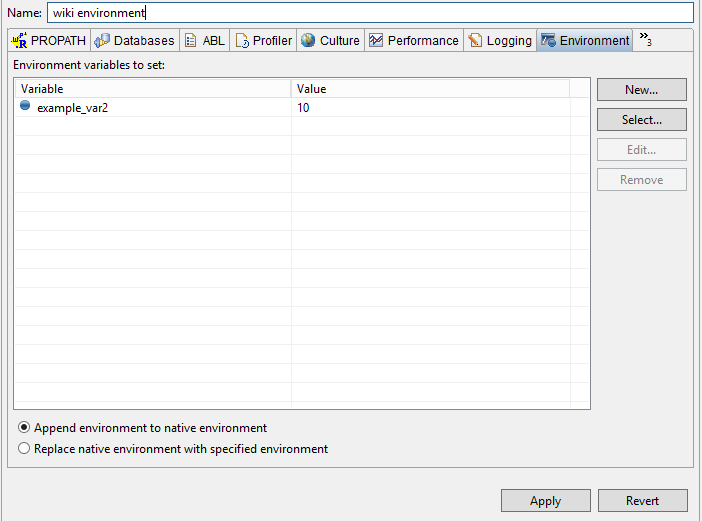
The variable can be accessed at runtime with os-getenv("<var-name>").. The user can also tell the configuration to use the environment variables specified on this tab either in addition to or in place of those defined for the operating system.
Common
The Common menu tab handles the storage location of the Run Config, console encoding, background mode, etc. Full options are in this PDSOE Guide.
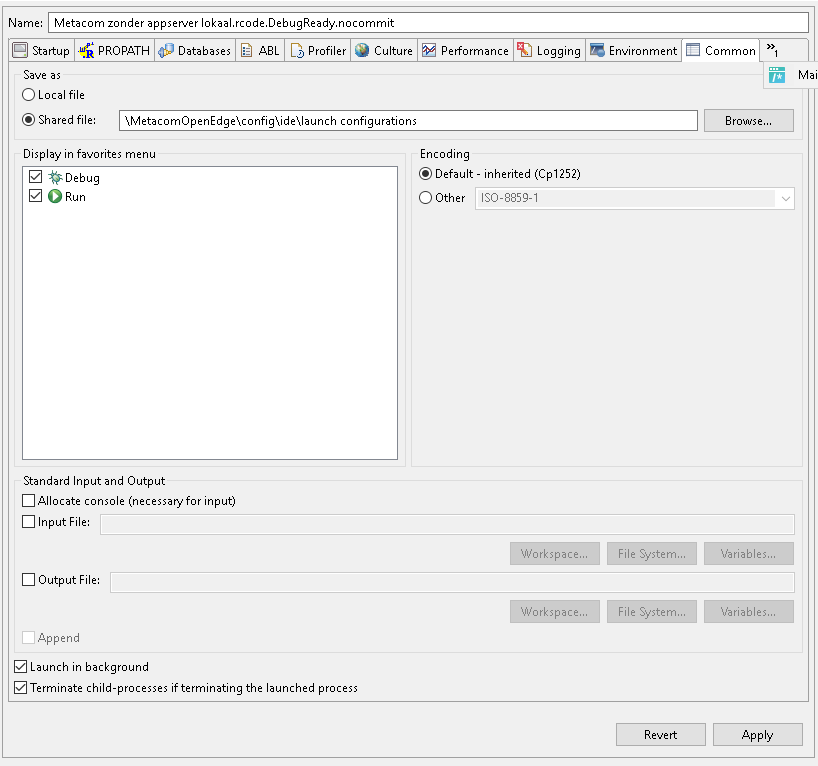
Run configs are serialized in a .XML fashion:
PDSOE Project tools
By right-clicking the file and choosing the Progress Open Edge option, we can also:- Compile the file (i.e. generating a
.rfile). Running a file does not always generate a.rfile. The compiled file is needed, for example, for debugging. - Generate Doc - an
.htmlfile will be generated, documenting the variables, procedures and functions using comments in the code. If comments are not provided, a minimal version is generated that will only inform about the names, return types and argument types.
The.htmlfiles generated are
1. Anindex.htmlfile. This is the entry point for visualizing the package documentation.
2. Anoverview.htmlfile. Other details regarding the docs, such as header. This is edited by directly editing thehtmlfile.
3. Anpackage.htmlfile. Each package has such a file, which can be manually edited if any comments or details are to be added.
4. A.htmlfile for any procedure/class file. These files can be augmented by addingcommentswhen developing. The user can add annotate files and elements(methods, functions, and internal procedures). This is an example of the format to be followed:
/
/*------------------------------------------------------------------------
    File        : <h1><i>proc</i></h1> <br>
    Purpose     : <br>
    Syntax      : <br>
    Description : <br>
    Author(s)   : Florin. <br>
    Created     : Tue Nov 19 21:16:10 CET 2013 <br>
    Notes       : This is a procedure file called proc.p.
                  <br>

  ----------------------------------------------------------------------*/
DEFINE INPUT PARAMETER param1 AS CHARACTER.

/*------------------------------------------------------------------------------
    Purpose     : This is an <i> internal procedure</i>. <br>
    Syntax      : <br>
    Description : <br>
    Author(s)   : Florin. <br>
    Created     : Tue Nov 19 21:16:10 CET 2013 <br>
    Notes       : Use this whenever. <br>
                    @param a this is an integer param <br>
                    @return Returns 10. <br>

------------------------------------------------------------------------------*/
FUNCTION main RETURNS INTEGER (input a as int):
    RETURN 10.
END FUNCTION.
The tabs, spacing and the newlines in the ABLDdocs are important. The generated docs files looks like this:
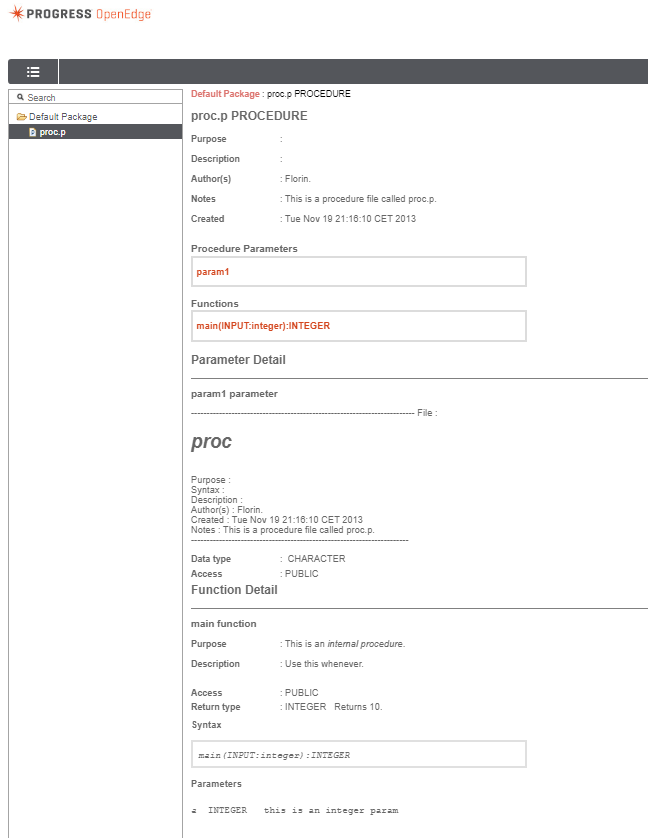
The ABLDoc can be generated using Apache Ant too. The process is documented in this PDSOE Guide. This is an example of a working Ant Task which generates the docs for all .p files from an OE project called simple.
<?xml version="1.0" encoding="UTF-8"?>
<project basedir="." default="main" name="ABLDoc-Ant">
         <!-- Properties used to configure the CLASSPATH and the default artifacts location -->
      <property name="DLC_HOME" value="C:/Progress/OE116_64"/>
      <property name="version" value="11.6.3.00"/>
      <property name="PROJECT_HOME" value="${DLC_HOME}/oeide/eclipse/plugins/com.progress.openedge.pdt.abldoc.core_${version}"/>
      <property name="lib.dir" value="${PROJECT_HOME}/lib"/>
      <property name="artifacts.dir" value="${PROJECT_HOME}/abldoc-artifacts"/>
         <!-- Target for defining 'taskdef' -->
      <target name="taskdef">
        <taskdef name="abldoc" classpath="${DLC_HOME}/java/ant-abldoc.jar" classname="com.progress.openedge.ant.abldoc.ABLDocTask">
           <!-- Class path for including the dependencies -->
         <classpath>
            <fileset dir="${lib.dir}">
              <include name="**/*.jar"/>
            </fileset>
         </classpath>
       </taskdef>
      </target>
         <!-- main task to generate the documentation -->
     <target name="main" depends="taskdef">
       <abldoc includeProtected="true" includePrivate="true" artifactLoc="${artifacts.dir}" includeExtension="i" verbose="yes" doctitle="ABLDoc Documentation"
         destdir="${basedir}/docs" dlc="${DLC_HOME}">
           <abldocproject
           name="simple"
           location="C:/Users/Administrator/Progress/Developer Studio 4.3.1/ws2/simple">
           <sourcepath>
               <fileset dir="C:/Users/Administrator/Progress/Developer Studio 4.3.1/ws2/simple">
                    <include name="*.p"/>
               </fileset>
           </sourcepath>
           </abldocproject>

         </abldoc>
       </target>
      </project>
The result is the same as the docs generated from the OE environment.
Debugging
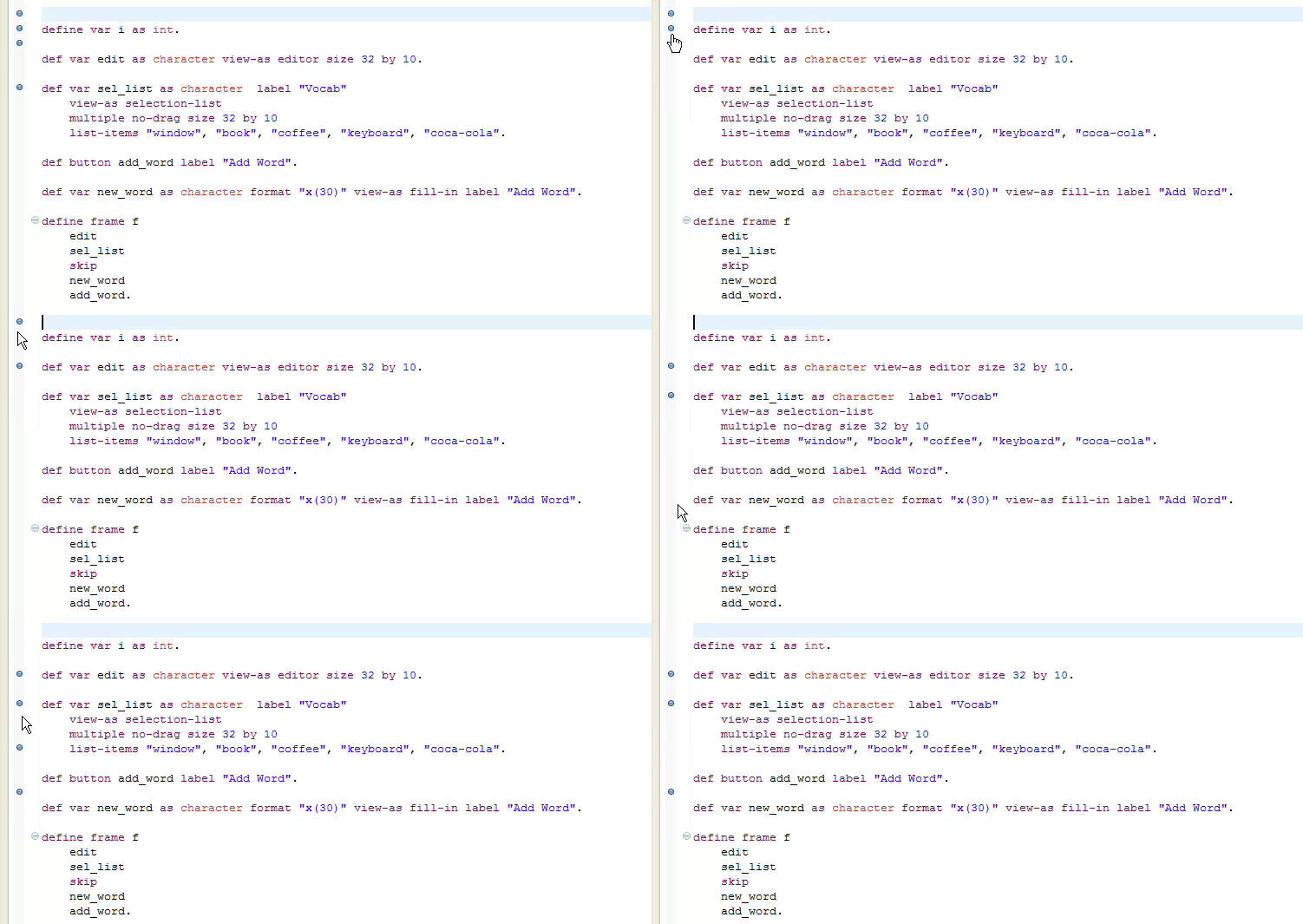
Once a file has been compiled and the .r is generated, we can run it in debug mode. This can be done either by pressing the green bug left of the run button or by right-clicking the file, Debug As → Progress OE App. Custom configurations are also available for debug mode.
- double-clicking on the left side of the editor,
- from the Breakpoints view, see the Project Views Breakpoints subsection.
One can add boolean conditions to breakpoints by selecting the breakpoint and choosing the Edit button in the Breakpoints dialog box. 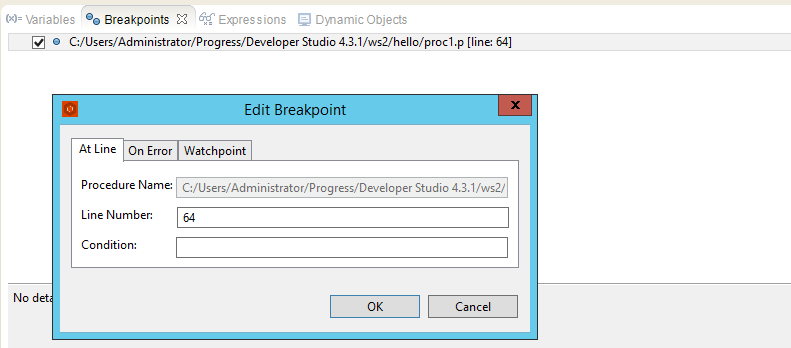
The Variables dialog presents all of the declared variables so far, along with their values. The Expressions dialog is similar, but it is meant for evaluating expressions added by the user. For example, by adding a handle object we can inspect all its member data:
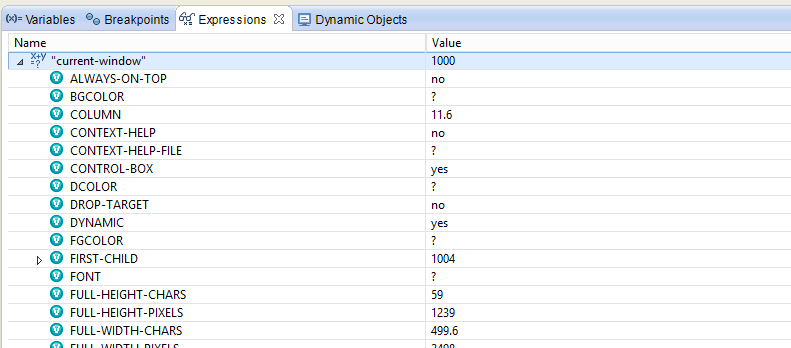
The debugging actions are:

- Step Return - moves the debugger out of the current procedure or function and back to the calling procedure. Used for finishing the execution of a function or method, returning to the caller without stepping through the remaining lines of the function.
- Step Over - executes the current line of code, but if it contains a function or method call, it will not step into that function. Instead, it runs the function and stops at the next line in the current procedure. Used for skipping over a function or method call and focus on the current procedure.
- Step Into - executes the current line of code, and if the line contains a function or method call, it enters that function or method and starts debugging inside it. Used for tracing the execution inside a function or method step-by-step to see how it behaves.
- Resume - continues execution from the current breakpoint until the next breakpoint or until the program finishes. Used for resuming normal execution after pausing, without stepping through each line of code.
- Terminate - stops the debugger and immediately terminates the execution of the program. Used for stopping the debugging session and halt the program’s execution entirely.
Database Management
OE IDE offers strong DB integration through the Data Administration and Data Dictionary tools. They can be launched from OpenEdge → Admin menu items. In order to access them we have to be in the context of a project.
Data Administration
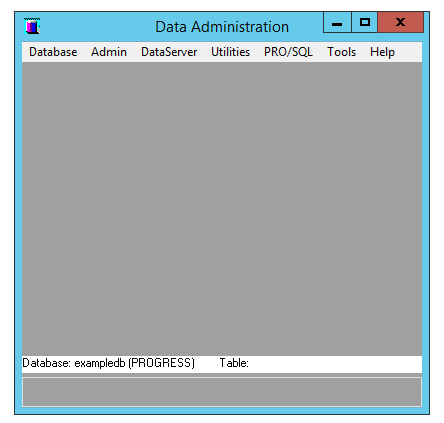 

The main features include:
1. Database Connectivity - under the Database menu item, the user has the options to either create a new database or connect to one. If we are connected to several databases at the same time (which is allowed), the working database can be selected, i.e. the db for which we want to inspect/modify.
2. Data & Schema Import/Export under the Admin menu item, the user can Load/Dump the DB content and the Schema definition.
- The schema is serialized in a SQL-like syntax which describes the tables and its fields
schema.df:ADD TABLE "table1" AREA "Schema Area" DUMP-NAME "table1" ADD FIELD "f1" OF "table1" AS character FORMAT "x(8)" INITIAL "" POSITION 2 MAX-WIDTH 16 ORDER 10 . PSC cpstream=ISO8859-1 . 0000000186
- The data of a table is serialized in a
.dfile which holds all entries line by line. If there are multiple fields, they are separated by a space.
dump.d:"text for f1 field of table1 table" "another text for f1 field of table1 table" . PSC filename=table1 records=0000000000002 ldbname=exampledb timestamp=2025/03/10-01:25:58 numformat=44,46 dateformat=mdy-1950 map=NO-MAP cpstream=ISO8859-1 . 0000000085
- sequence definitions/current values
- security domains/permissions
- database options
- etc.
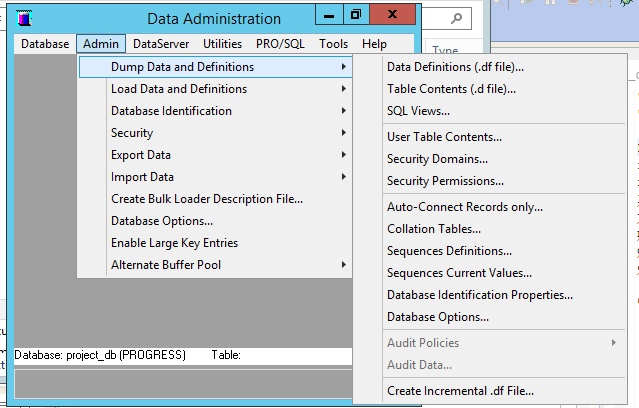
- DIF
- SYLK
- Text
- Miscrosoft Word Merge Data
- DIF
- SYLK
- Delimited Text
- Fixed-Length
- dBASE Definitions
- dBASE File Contents
Before importing/exporting, the user has to choose a specific table and field for the desired action.
3. Managing the Schema
The schema editing is done with the Data Dictionary tool which can be started by choosing Tools → Data Dictionary.
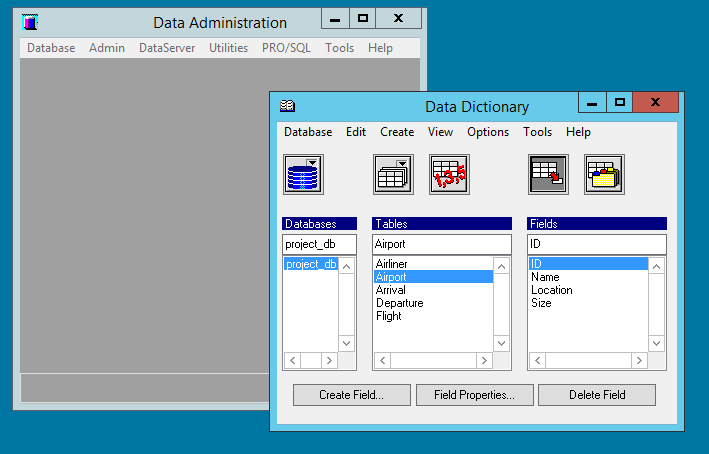
Data Dictionary
The data dictionary has 5 views that provide ways to edit the database schema by editing the following components:
- Databases - The use can Create a Database and Edit Database Properties.
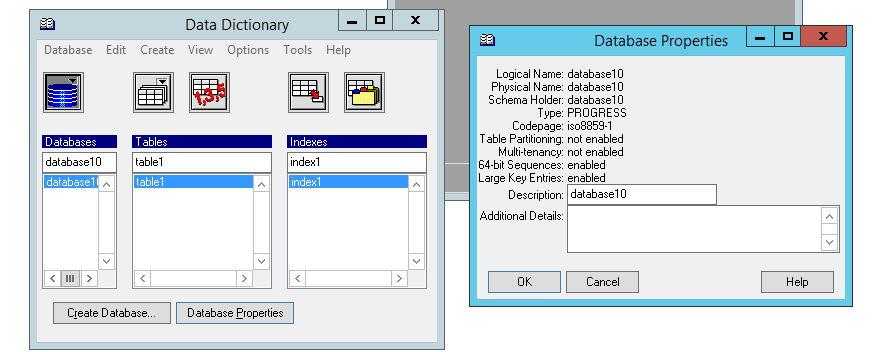
- Tables - The user can Create Tables, Edit Table Properties and Delete a Table. For creating a table, the only mandatory information is the new table name. Both at table creation and during properties edit, the user can triggers and validation expressions.
A trigger is a 4GL procedure that happens when a triggering event occurs, such as when OpenEdge RDBMS reads a record in the table you are modifying using aFINDstatement or aFOR EACHloop, aCREATEor anINSERTstatement modifies the table, aDELETEstatement modifies the table, etc. The trigger procedure files are saved in the same directory as the database. For example, if we have the tablesArrival,Departure, andFlight, we would perhaps want to run a trigger that deletes the departures and arrivals if a flight is canceled. The trigger would look something like this:/* TRIGGER TO CASCADE DELETE ARRIVALS/DEPARTURES WHEN A Flight IS DELETED */ trigger procedure for delete of Flight. for each Arrival where Arrival.FlightID = Flight.ID: delete Arrival. end. for each Departure where Departure.FlightID = Flight.ID: delete Departure. end.
A validation expression is a boolean expression that checks if the deletion of the table is possible. In other words this prevents unwanted deletion of tables and displays the given explanatory message. This is the Triggers and Table Properties editing dialog: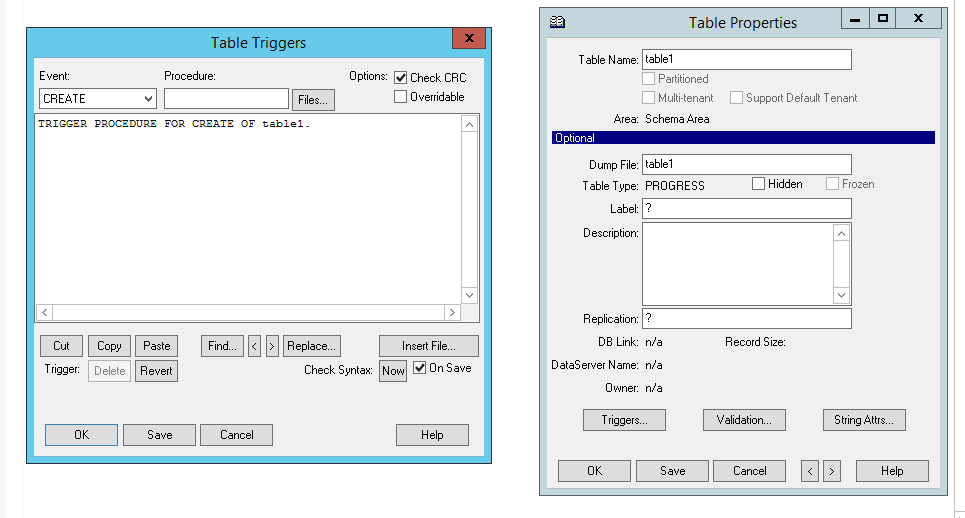
- Sequences - The user has the option to Create a Sequence, Edit the Sequence Properties and Delete the Sequence. Sequences are database objects that are used to hold and incremental value. They have an initial value, an increment step, an upper bound and, optionally, the property to cycle the sequence once the limit is reached. These can be modified when editing the sequence properties.
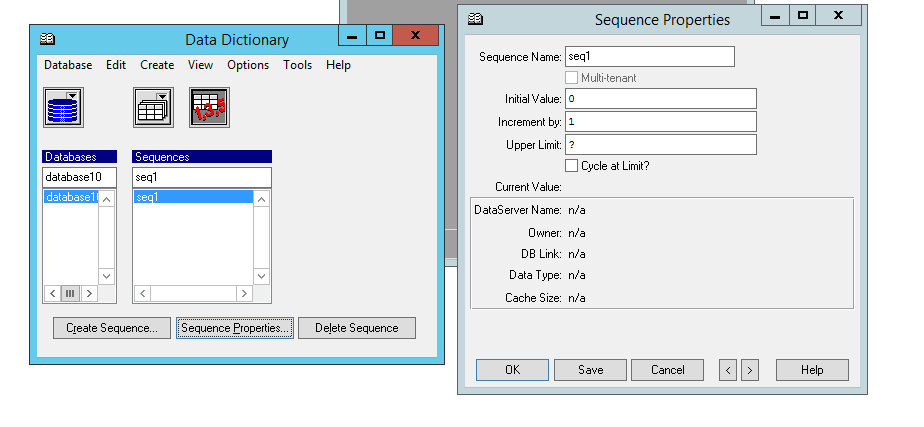
- Fields - The user can Create a Field, Edit the Field Properties and Delete the Field. The minimum required information the field-name and the datatype. Next, depending on the datatype, a lot of properties can be provided, similarly to when a variable is defined in 4GL. These properties can also be edited later. Additionally, Data Dictionary has the feature of adding triggers and validation expressions for fields too, which are bound to the
ASSIGNevent. An example of such a trigger definition would beTRIGGER PROCEDURE FOR ASSIGN OF Airliner.Name.. Validation expression have the purpose to validate when a specific value is assigned to the object's field. Fields that are indexed cannot be deleted. This is the Field Triggers and the Field Properties editing dialog: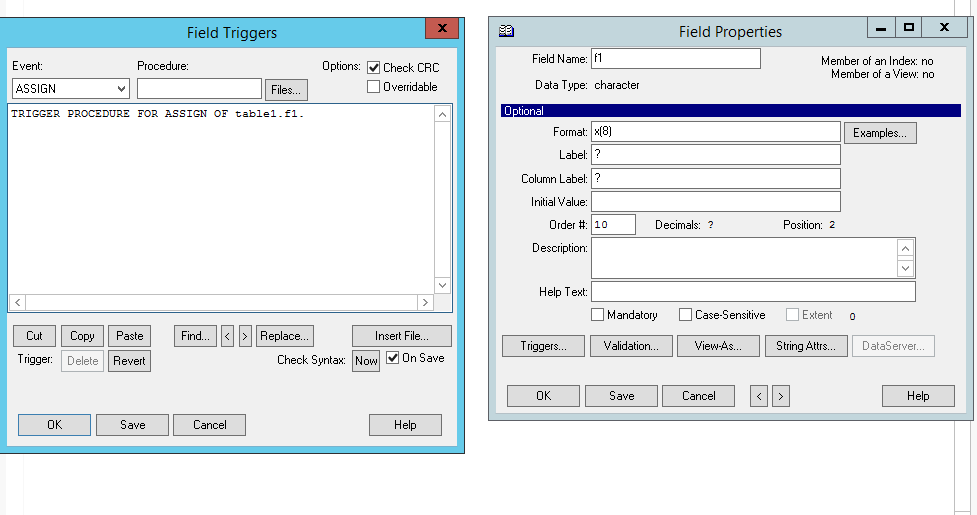
- Indices. - The user has the option to Create an Index, Edit the Index Properties and Delete the Index. Indices are database object used to speed up access to data by creating an ordered set of pointers that map to the underlying records of a database table. Indices improve the performance of queries, especially when searching or filtering records based on specific fields. They are particularly useful when performing operations such as
FINDon a large number of records. The user has to supply a name for the index, a description (optionally), choose the fields to which the index will extend and also the following options as properties (These options can no longer be modified once the index had been created.:
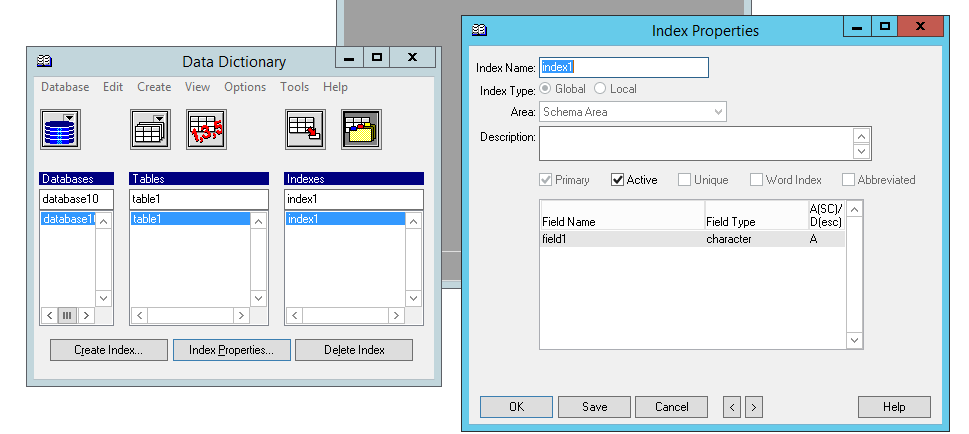
- primary - Primary key of the table, which ensures that the records are uniquely identifiable and quickly accessible.
- active - Specifies if the index is ready to be used.
- unique - Does not allow the table to contain rows with duplicate column values for the set of columns specified for that index. Primary fields cannot
- word index - A special type of index designed to improve the performance of queries involving searches on character-based fields. For example, the use of
CONTAINSis only compatible with fields that have a word index. This option is mutually exclusive with all of the other ones except the active option.
© 2025 Golden Code Development Corporation. ALL RIGHTS RESERVED.